Remote Connections
The Remote Connections settings screen lets you configure external services for importing and exporting data. All remote connections are managed in one place under Settings - Remote Connections.
- Android
- iOS
Accessing Remote Connections
- Open Settings from the main menu.
- Tap Remote Connections.
FTP / SFTP
Configure an FTP or SFTP server to import and export projects and layers remotely.
| Setting | Description |
|---|---|
| Host | The hostname or IP address of your FTP server (e.g. ftp.example.com) |
| Port | The port number (default: 21 for FTP, 22 for SFTP) |
| SFTP | Toggle to enable SFTP (SSH File Transfer Protocol) instead of plain FTP |
| Server Path | The remote directory path for file operations (SFTP only) |
| Username | Your FTP/SFTP username |
| Password | Your FTP/SFTP password |
After entering your connection details, tap Test Connection to verify everything is working. The app will attempt to connect and report success or failure.
Always use SFTP when possible - it encrypts the connection and is more secure than plain FTP.
The FTP/SFTP connection must be configured before the FTP import and export options appear in the app. See Import/Export via FTP for usage details.
Dropbox
Link your Dropbox account to import and export files directly from the app.
- Tap Connect to start the Dropbox authentication flow.
- Sign in with your Dropbox credentials and grant access to Mapit GIS.
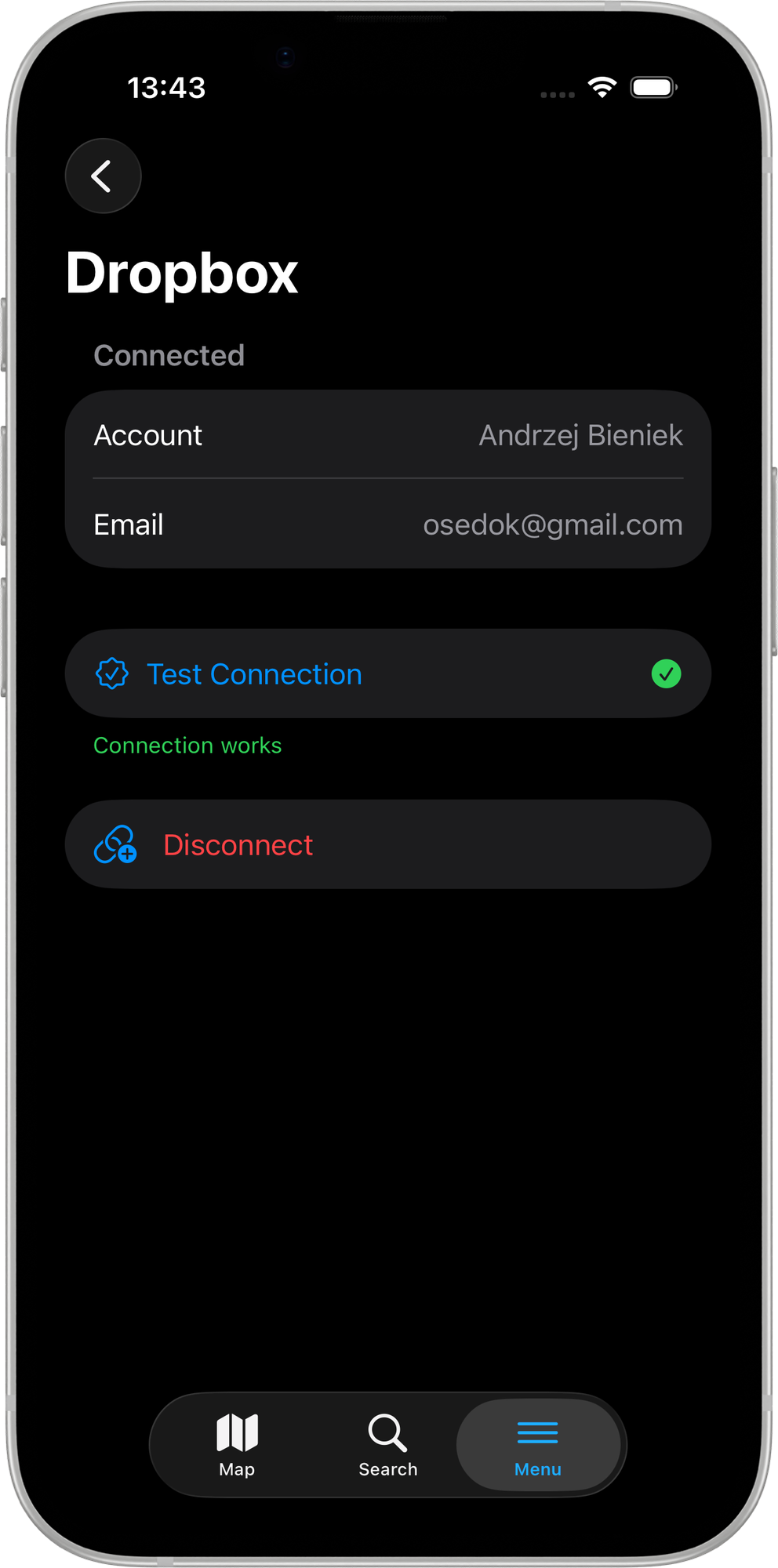
- Once connected, your account name and email are displayed.
Files are stored in the /Apps/Mapit GIS/ folder on Dropbox. See Export to Dropbox for details.
To disconnect, tap Disconnect. This removes the stored tokens from the device but does not delete files already on Dropbox.
PostgreSQL / PostGIS
Configure a PostgreSQL database connection for exporting layer data directly to PostGIS.
| Setting | Description |
|---|---|
| Host | Database server hostname or IP |
| Port | Database port (default: 5432) |
| Database | The database name |
| Username | Database username |
| Password | Database password |
Tap Test Connection to verify the server is reachable. See Exporting to PostgreSQL for usage details.
ArcGIS Online sign-in has its own dedicated settings screen and is not part of Remote Connections. See ArcGIS Online Settings.
Accessing Remote Connections
- Open Settings from the main menu.
- Tap Remote Connections.
The Remote Connections screen groups three services: Dropbox, SFTP, and PostgreSQL.
Dropbox
Link your Dropbox account to import projects and layers from, and export them to, your Dropbox account directly from inside the app. Files live in the /Apps/Mapit GIS/ app folder on Dropbox.
| Row | What it does |
|---|---|
| Connect to Dropbox | Shown when no account is linked. Opens the Dropbox sign-in page in a secure in-app browser sheet (ASWebAuthenticationSession). After you grant access, the sheet closes automatically and the row is replaced by the connected-state rows below. |
| Account name | The full name of the signed-in Dropbox account. Read-only. |
| Account email | The email address of the signed-in Dropbox account. Read-only. |
| Test Connection | Calls Dropbox to refresh the cached account info. A green checkmark appears on success; a red cross on failure. Useful after a long offline period or if uploads start to fail. |
| Disconnect from Dropbox | Asks for confirmation, then removes the stored access and refresh tokens from the device Keychain. Files already on Dropbox are not affected. |
The sign-in flow uses OAuth 2.0 with PKCE, so the app never sees your Dropbox password. Access tokens are stored in the iOS Keychain and refreshed automatically on 401 responses, so a normal connection lasts indefinitely without you having to re-authenticate.
A green checkmark next to Dropbox in the Remote Connections list tells you at a glance that an account is currently linked.
What "connected" enables
Once Dropbox is linked, three extra entry points become available across the app:
- Projects → New Project sheet — adds an Import from Dropbox option to the create / import list.
- Projects → project row → Export — adds an Upload to Dropbox destination to the export sheet.
- Layers → layer row → Export / Import — adds Upload to Dropbox and Import from Dropbox entries (layer upload is Pro+).
See Export to Dropbox for the full import / export workflow.
SFTP
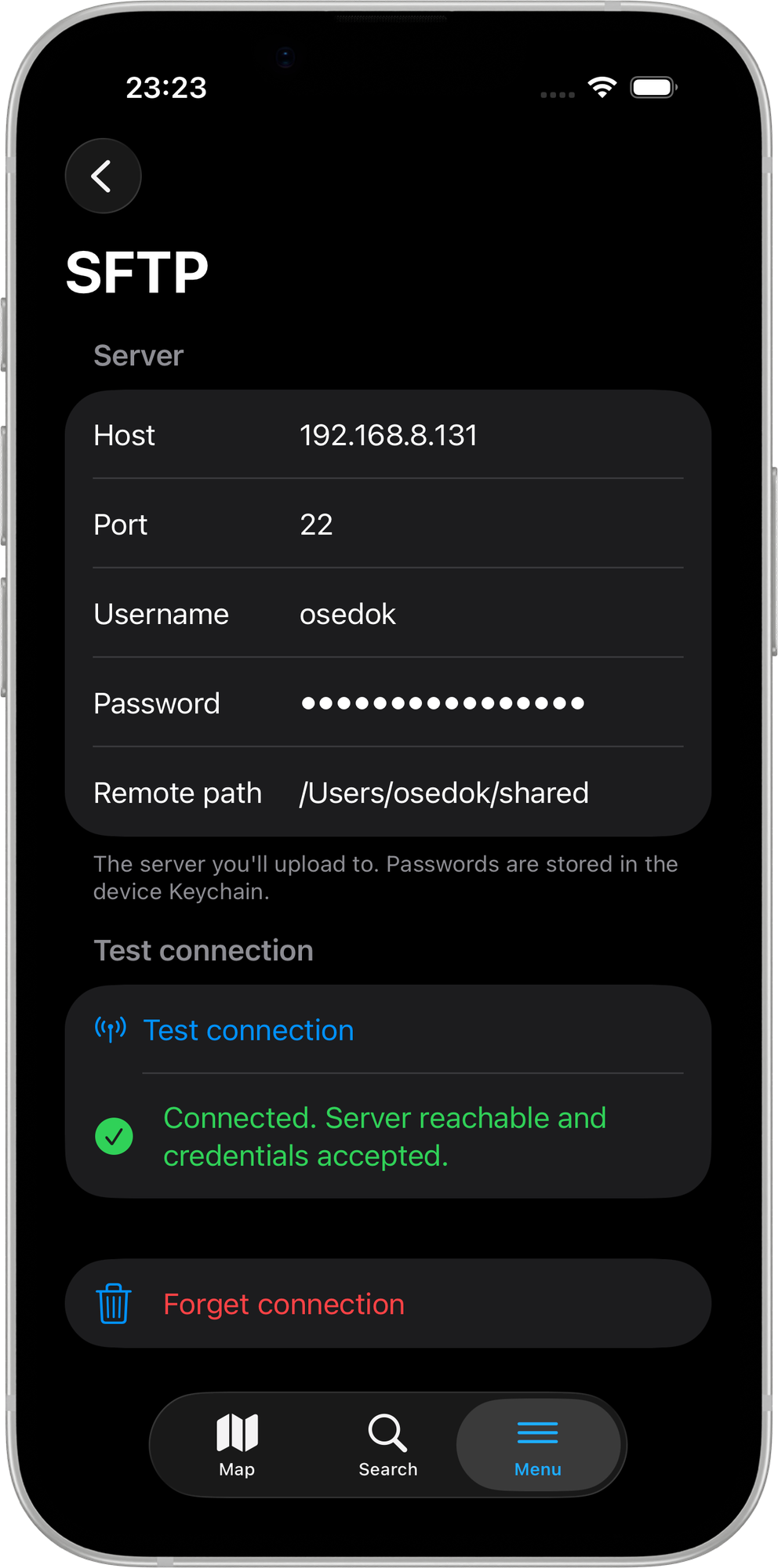
Configure an SFTP (SSH File Transfer Protocol) server to import and export projects and layers directly from the app. Plain FTP is not supported on iOS.
| Setting | Description | Default |
|---|---|---|
| Host | Hostname or IP address of the SFTP server | — |
| Port | SSH port | 22 |
| Username | SFTP username | — |
| Password | Stored securely in the iOS Keychain | — |
| Remote path | Directory on the server used for file listings and uploads | / |
Tap Test Connection to perform a live SSH + SFTP round-trip with a 10-second timeout. A success or failure banner confirms whether the credentials and path are working before you go into the field.
Tap Forget Connection to remove all stored credentials — host, username, and Keychain password — from the device.
The iOS SFTP client accepts any host key without verification. This makes it straightforward to connect to self-signed corporate SFTP servers. If you are connecting over the public internet, use a VPN for an additional layer of protection.
SFTP import and export require the Import/Export entitlement, available on Pro and Pro+ tiers.
See Import/Export via SFTP for the full import and export workflow.
PostgreSQL
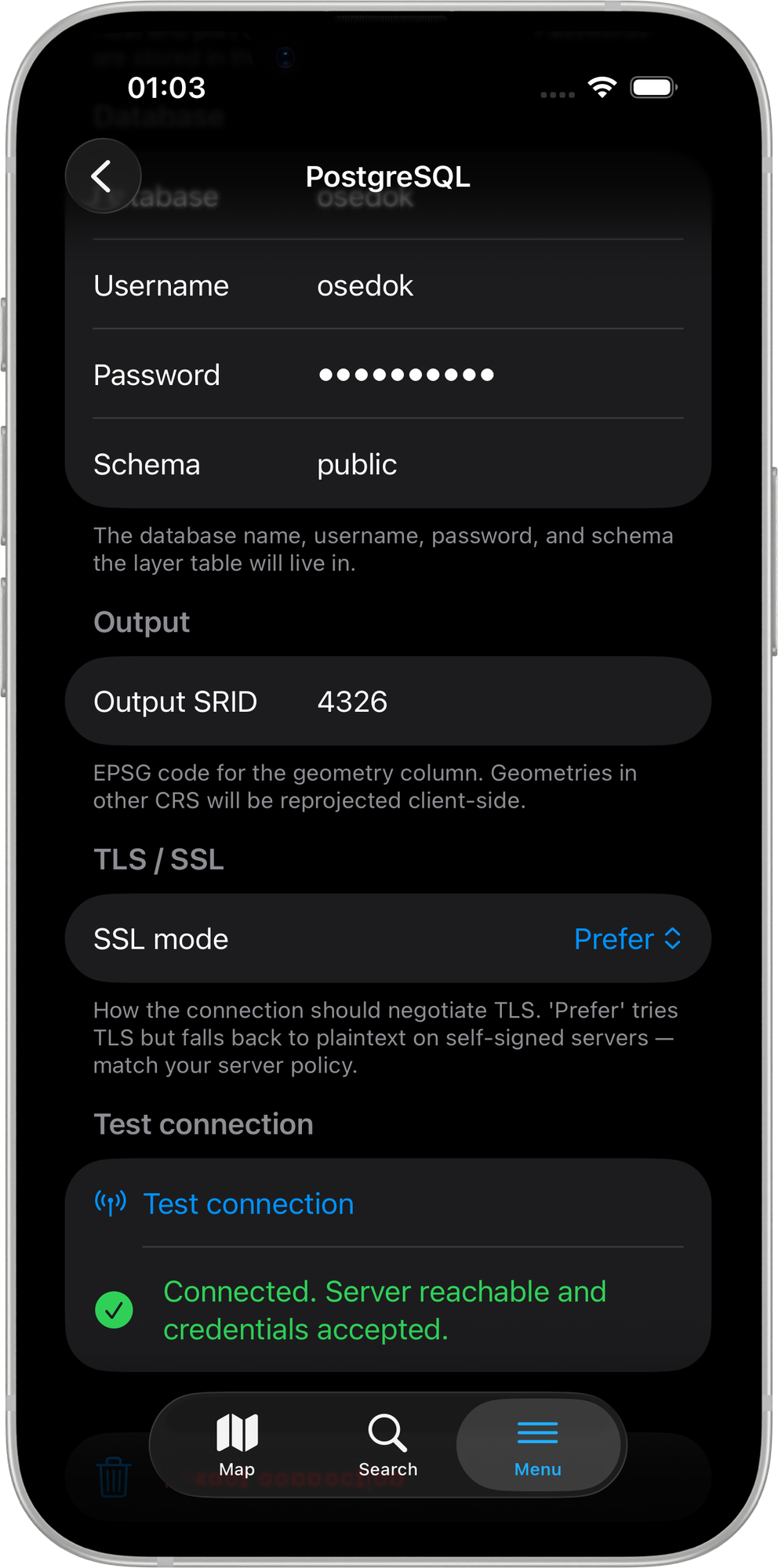
Configure a direct PostgreSQL/PostGIS connection to export layer data from the field into your database.
| Setting | Description | Default |
|---|---|---|
| Host | Database server hostname or IP | — |
| Port | PostgreSQL port | 5432 |
| Database | Target database name | — |
| Username | Database user | — |
| Password | Stored securely in the iOS Keychain | — |
| Schema | Target schema for exported tables | public |
| Output SRID | SRID written to the PostGIS geometry column | 4326 |
| SSL mode | disable / prefer / require | prefer |
prefer mode connects over SSL when the server supports it and trusts any certificate. Use require with a valid certificate for production databases reachable over the public internet.
Export options
The Export options section contains two hide-toggles that control which export modes appear when exporting a layer:
| Toggle | Effect |
|---|---|
| Hide "Overwrite" | Removes the Overwrite button from the layer export flow — useful in teams where accidental overwrites would be catastrophic |
| Hide "Append" | Removes the Append button from the layer export flow |
The two toggles are mutually exclusive: turning one on forces the other off, so you can never hide both modes simultaneously.
PostgreSQL export requires Mapit Pro+ on iOS. Pro users see the paywall when they tap either export button.
See Exporting to PostgreSQL for the full export workflow.