Snapping Settings
The Snapping settings category controls how Mapit pulls new and dragged vertices onto existing features during editing. See Vertex Snapping for the workflow in context.
- Android
- iOS
Go to Settings > Snapping to access these options.
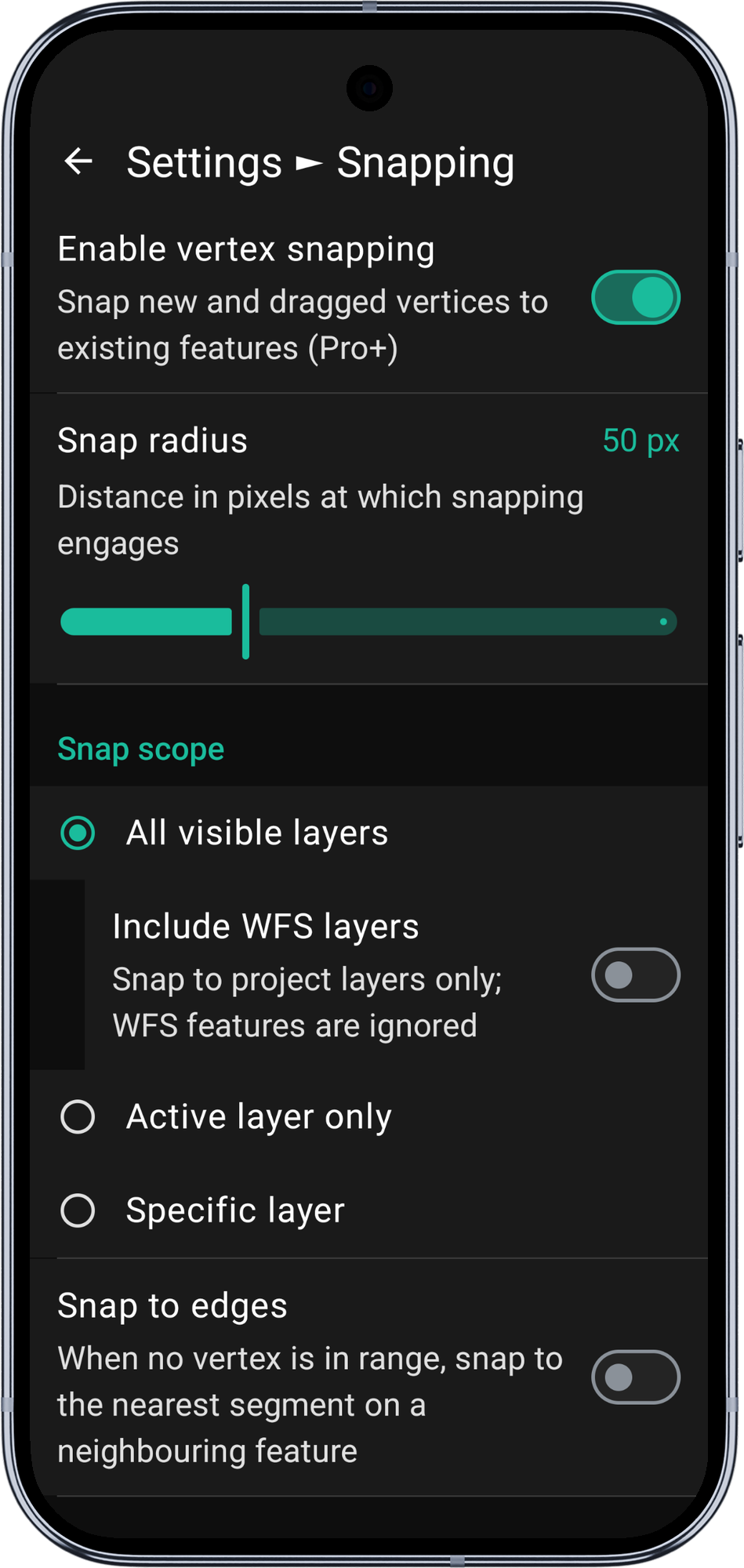
Vertex snapping requires a Mapit Pro Plus subscription. The master toggle is visible on all tiers, but turning it on without Pro+ opens the subscription paywall.
Enable vertex snapping
Default: Off
The master switch for snapping. When off, all other controls on this screen are disabled and snapping has no effect anywhere in the app.
When on, new and dragged vertices snap to existing features according to the other options below. Turning the master off leaves the other settings at their last values - you can flip the master back on at any time without reconfiguring them.
Snap radius
Range: 20 - 120 px | Default: 50 px | Visible when: master toggle is on
The distance in screen pixels at which snapping engages. When the input position is within this radius of a candidate vertex or edge, snapping pulls the vertex onto the candidate.
- Smaller values (20 - 40 px) require you to tap or drag very close to the target. Useful at high zoom when features are far apart on screen, or when the map is busy with many overlapping features.
- Larger values (80 - 120 px) make snapping engage more aggressively. Useful at low zoom, when working with a stylus, or when you want a strong pull towards existing features.
The radius is measured in screen pixels, not map units, so the snap behaviour feels the same regardless of the current zoom level.
Snap scope
Default: All visible layers | Visible when: master toggle is on
Controls which layers contribute candidates to a snap lookup. Three options are available:
| Value | Behaviour |
|---|---|
| All visible layers | Any rendered feature on the map can be a snap target. The default; usually what you want for cross-layer topological cleanup. A nested Include WFS layers switch (see below) refines this option further. |
| Active layer only | Only features on the layer you are currently editing can be snap targets. WFS layers can never be the active layer (they are read-only), so this option always excludes WFS noise. |
| Specific layer | Snapping is restricted to one chosen GeoPackage table or WFS layer. Picking this reveals a dropdown that lists every currently visible layer (GeoPackage tables and WFS layers, with WFS layers labelled (WFS)). The chosen layer is remembered across sessions. |
Cluster markers and Mapit's own session overlays are always excluded from the candidate set regardless of which scope is selected.
Include WFS layers
Default: On | Visible when: Snap scope is All visible layers
Nested under the All visible layers option. When on, WFS background features count as snap candidates alongside your GeoPackage features. When off, only GeoPackage features in the visible project layers are considered - WFS reference data (cadastral overlays, basemap WFS feeds) is ignored.
Surveyors with busy WFS reference backgrounds (e.g. cadastral overlays that show every neighbouring parcel boundary) typically want this off so their own GeoPackage features are the only snap targets, while keeping "All visible layers" selected for cross-GeoPackage-layer cleanup.
The toggle does not affect the Active layer only option (WFS can never be active) or the Specific layer option (you have already picked one).
Specific layer fallback behaviour
If the layer you picked under Specific layer is later hidden or removed, snapping silently behaves as All visible layers for the duration that the chosen layer is unavailable. Re-showing the layer re-engages the original choice without you having to revisit the setting.
This keeps the workflow stable when you toggle layer visibility from the layers panel during a session.
Snap to edges
Default: Off | Visible when: master toggle is on
Extends snapping beyond vertices. When no vertex is inside the snap radius but a feature's edge (a line segment between two vertices) is, the new vertex is placed on the nearest point of that segment.
Edge snap is a fall-back. A vertex match inside the radius always wins over an edge match, so turning this on does not weaken vertex-to-vertex snapping.
Use edge snap when:
- You are cutting a new polygon along the boundary of an existing one and need intermediate vertices on that boundary.
- You are extending a line network with new vertices along existing edges.
- You want to place a point exactly on an existing road or river line.
What about self-snap and ring closure?
There is no toggle for self-snap - whenever an edit session is active, the vertices of the feature you are currently editing are always included as snap candidates (minus the vertex being dragged, if any). This means ring closure "just works": snap the final vertex of a polygon onto the first and the coordinates match exactly.
Go to Settings → Editing → Snapping to access these options.
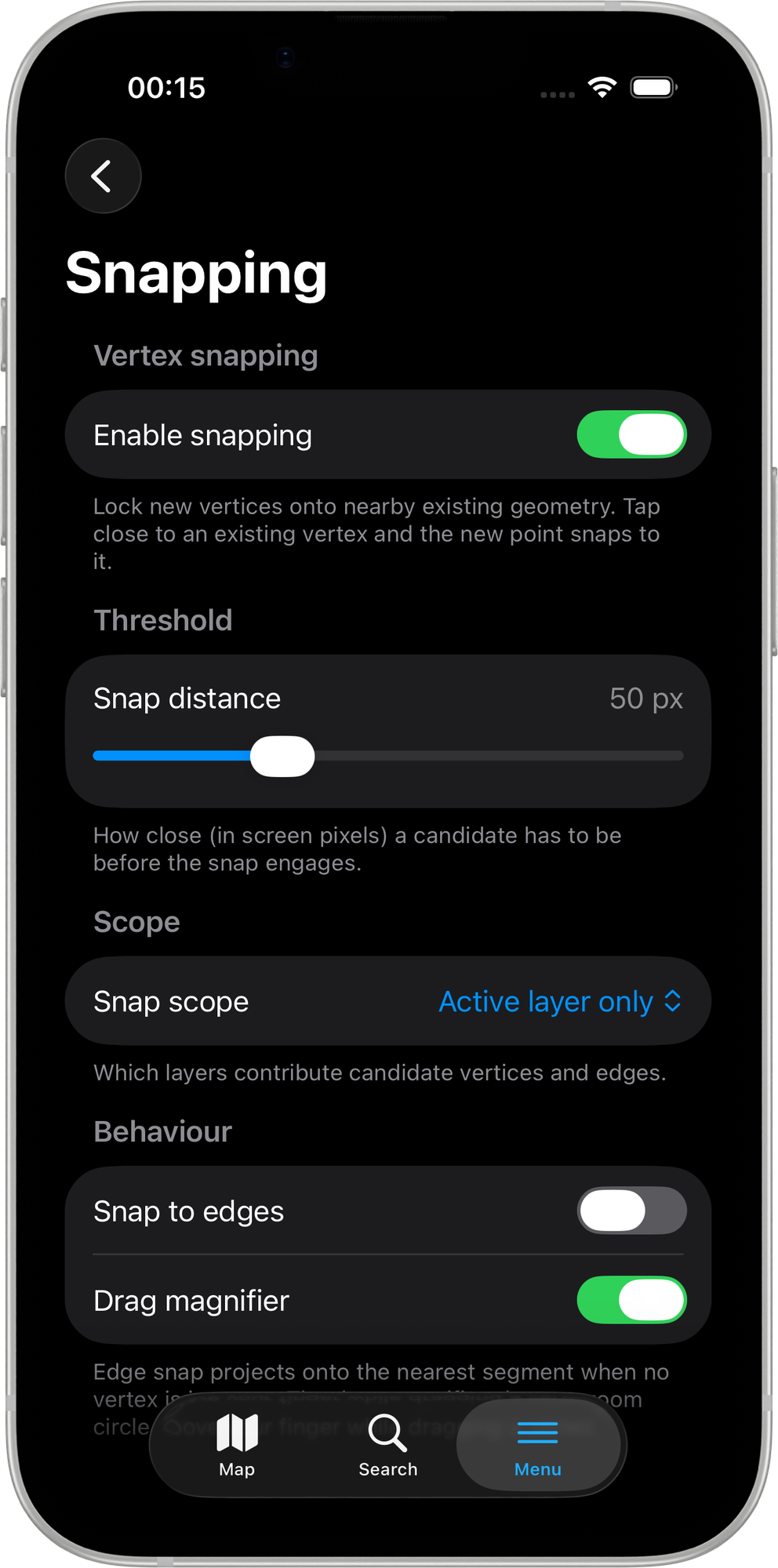
Vertex snapping requires a Mapit Pro Plus subscription. The master toggle is visible on all tiers, but turning it on without Pro+ opens the subscription paywall.
Enable vertex snapping
Default: Off
The master switch for snapping. When off, all other controls on this screen are disabled and snapping has no effect anywhere in the app.
When on, new and dragged vertices snap to existing features according to the other options below. Turning the master off leaves the other settings at their last values — you can flip it back on at any time without reconfiguring.
Free and Pro users who tap the toggle are shown the Pro+ subscription paywall.
Snap radius
Range: 20 - 120 px | Default: 50 px | Visible when: master toggle is on
The distance in screen pixels at which snapping engages. When the input position is within this radius of a candidate vertex or edge, snapping pulls the vertex onto the candidate.
- Smaller values (20 - 40 px) require you to tap or drag very close to the target. Useful when the map is busy with many nearby features.
- Larger values (80 - 120 px) make snapping engage more aggressively. Useful at lower zoom or when you want a strong pull towards existing features.
The radius is measured in screen pixels, so snap behaviour feels consistent regardless of zoom level.
Snap scope
Default: All visible layers | Visible when: master toggle is on
Controls which layers contribute candidates to a snap lookup:
| Value | Behaviour |
|---|---|
| All visible layers | Any rendered GeoPackage feature on the map can be a snap target. The default. |
| Active layer only | Only features on the layer you are currently editing can be snap targets. |
Cluster markers and Mapit's own session overlays are always excluded from the candidate set.
Snap to edges
Default: Off | Visible when: master toggle is on
Extends snapping beyond vertices. When no vertex is inside the snap radius but a feature's edge (a line segment between two vertices) is, the new vertex is placed on the nearest point of that segment.
Edge snap is a fall-back — a vertex match always wins over an edge match.
Use edge snap when:
- You are cutting a new polygon along the boundary of an existing one and need intermediate vertices on that boundary.
- You are extending a line network with new vertices along existing edges.
- You want to place a point exactly on an existing road or river line.
Drag magnifier
Default: On | Visible when: master toggle is on
Shows a circular magnifying loupe above your finger while you drag a vertex. The loupe displays nearby vertices and edges within the snap scope, a pulsing orange reach ring sized to the snap radius, and a bold orange snap target marker when a candidate is in range.
Turn this off if you find the loupe distracting or if you are working with very large features where the snap zone is clear without magnification.
What about self-snap and ring closure?
There is no toggle for self-snap — whenever an edit session is active, the vertices of the feature you are currently editing are always included as snap candidates (minus the vertex being dragged, if any). This means ring closure "just works": snap the final vertex of a polygon onto the first and the coordinates match exactly.
Related Topics
- Vertex Snapping - What snapping does and how to use it
- Vertex Input Modes - The three ways to add a new vertex
- Mapit Pro Plus - What is included in the Pro+ subscription