ArcGIS Online Settings
The ArcGIS Online settings screen is where you sign in to your ArcGIS Online account, view which account is connected, browse the items you have published from Mapit GIS, and disconnect when you are done.
Publishing and uploading to ArcGIS Online requires a Mapit Pro Plus subscription. See Mapit Pro Plus for details.
- Android
- iOS
Go to Settings - ArcGIS Online to access this screen.
When disconnected
The screen shows a single action:
| Action | Description |
|---|---|
| Connect to ArcGIS Online | Opens the Esri sign-in page in a secure in-app browser tab. Sign in with your ArcGIS Online credentials and authorise Mapit GIS. The browser tab closes automatically on success and you return to this screen with the account now connected. |
The sign-in flow uses OAuth - Mapit GIS never sees your ArcGIS Online password. A confirmation message (ArcGIS Online account connected successfully) appears when the token is stored.
When connected
Once signed in, the screen shows:
| Row | Description |
|---|---|
| ArcGIS Online Account | Header for the account section. |
| Account name | The username of the signed-in ArcGIS Online account. |
| Organization | Your ArcGIS Online organisation name, if your account belongs to one. Hidden for personal accounts. |
| Mapit GIS Published Items | Tap to browse a list of items (feature services, file uploads) that you have published from Mapit GIS to your ArcGIS Online account. |
| Disconnect ArcGIS Online | Sign out. A confirmation dialog asks Do you want to disconnect your ArcGIS Online account? Tap OK to revoke the stored tokens on this device. Items already on ArcGIS Online are not deleted. |
Publishing and uploading
This settings screen only manages the connection itself. The actual publish / upload actions happen from the export sheets:
- Publish a single layer - see Export Layers
- Upload a full project - see Export Project
- ArcJSON (Esri JSON file format) - available as an export format regardless of whether you are connected
If you try to publish without being signed in, the export sheet prompts you to come back here and connect first.
Read next:
- Export Layers - publishing a single layer to ArcGIS Online
- Export Project - uploading a full project to ArcGIS Online
- Mapit Pro Plus - subscription features including ArcGIS Online integration
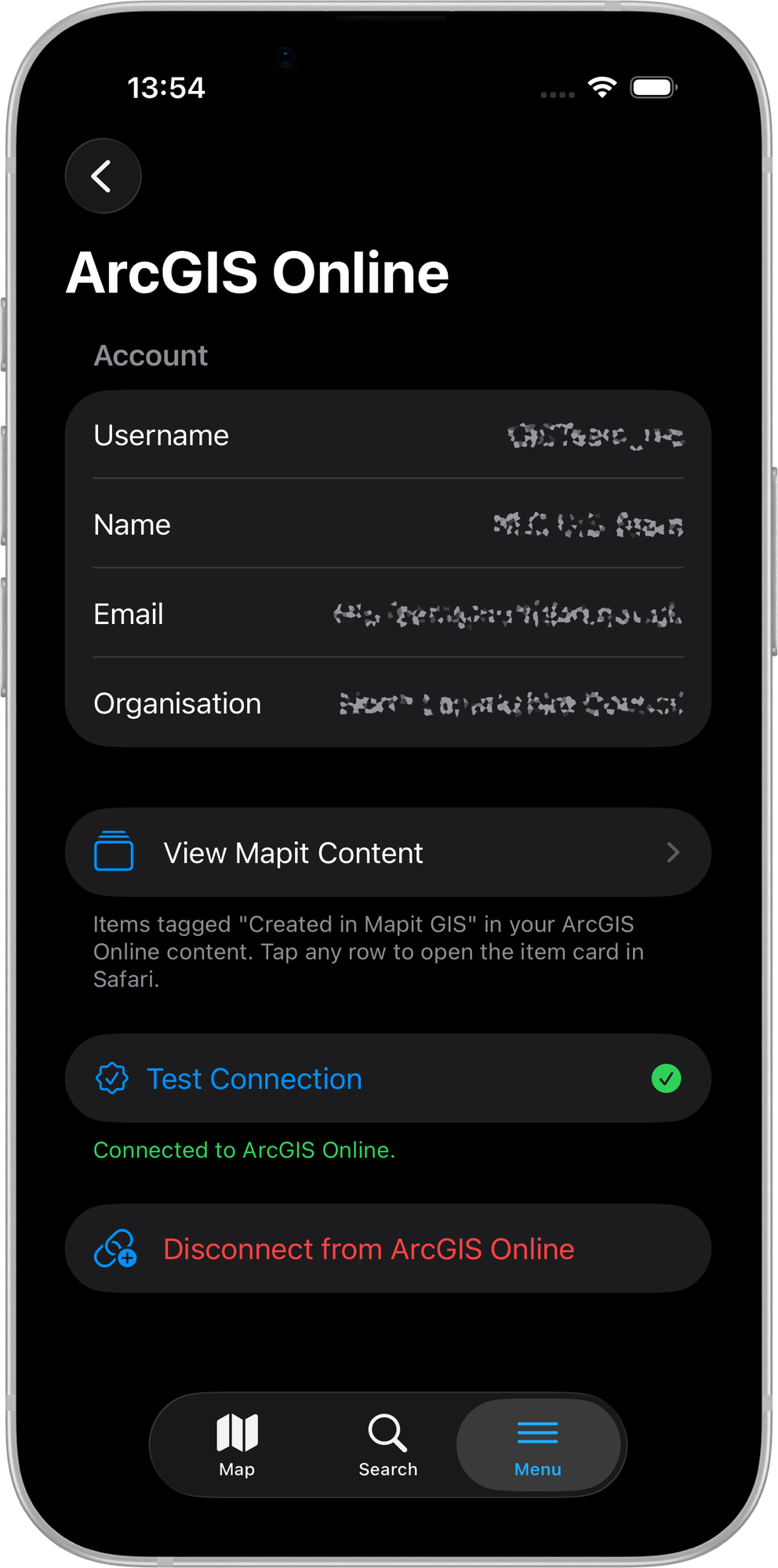
Go to Settings → Remote Connections → ArcGIS Online to access this screen.
When disconnected
The screen shows a single action:
| Action | Description |
|---|---|
| Connect to ArcGIS Online | Opens the Esri sign-in page in a secure sign-in sheet. Sign in with your ArcGIS Online credentials and authorise Mapit GIS. The sheet closes automatically on success and you return to this screen with the account now connected. |
The sign-in flow uses OAuth — Mapit GIS never sees your ArcGIS Online password. A confirmation message (ArcGIS Online account connected successfully) appears when the token is stored.
When connected
Once signed in, the screen shows:
| Row | Description |
|---|---|
| Username | The username of the signed-in ArcGIS Online account. |
| Name | The display name associated with the account. |
| The email address registered to the account. | |
| Organisation | Your ArcGIS Online organisation name, if your account belongs to one. Hidden for personal accounts. |
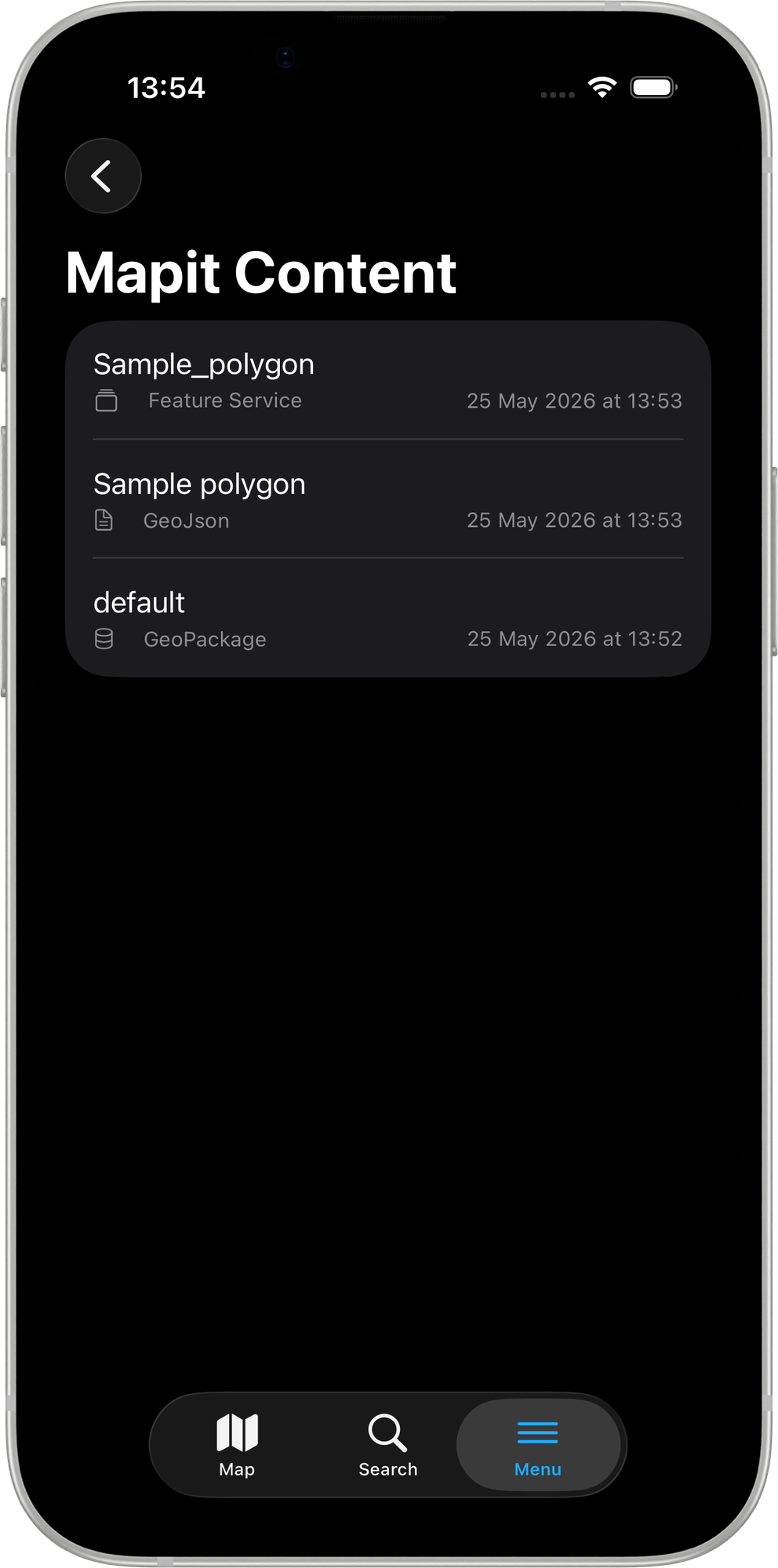
| View Mapit Content | Tap to browse a list of items you have published from Mapit GIS to your ArcGIS Online account — feature services, file uploads, and GeoPackage items — tagged Created in Mapit GIS, sorted newest first. Tap any row to open the item card in Safari. Pull down to refresh the list. |
| Test Connection | Verifies that the stored tokens are still valid and that your account can reach ArcGIS Online. A success or failure banner appears inline. |
| Disconnect | Sign out. A confirmation dialog asks you to confirm before revoking the stored tokens on this device. Items already on ArcGIS Online are not deleted. |
Publishing and uploading
This settings screen only manages the connection itself. The actual publish and upload actions happen from the export sheets:
- Publish or upload a single layer — see Export Layers
- Upload a full project — see Export Project
If you try to publish without being signed in, the export sheet prompts you to come back here and connect first.
Read next:
- Export Layers — publishing a single layer to ArcGIS Online
- Export Project — uploading a full project to ArcGIS Online
- Mapit Pro Plus — subscription features including ArcGIS Online integration