Exporting a Project
Exporting a project creates a complete copy of your GeoPackage database - including all layers, features, attributes, styles, offline maps, and online service definitions. The exported .gpkg file can be used for backup, transferred to another device, or opened directly in desktop GIS software such as QGIS or ArcGIS.
- Android
- iOS
Steps
- Open the Projects screen from the main menu.
- Tap the project you want to export. The project card expands to reveal action buttons.
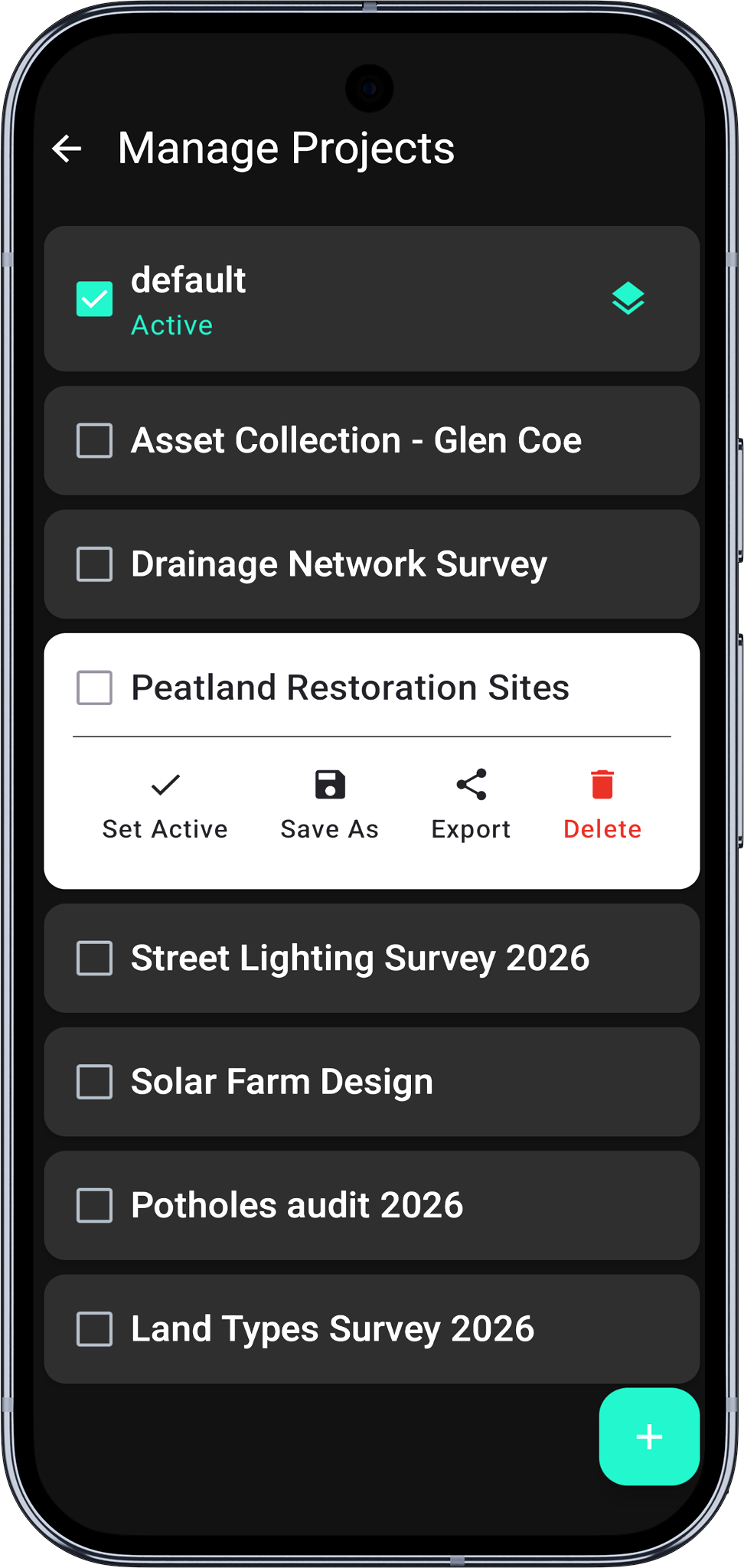
- Tap the Export button (share icon).
- A bottom sheet appears with export destination options:
| Destination | Description |
|---|---|
| Local | Save to device storage via the Android file picker |
| Share | Open the Android share menu to send via email, messaging, etc. |
| Dropbox | Upload directly to your Dropbox /Apps/Mapit GIS/ folder (see Export to Dropbox) |
| ArcGIS Online | Upload to your ArcGIS Online account |
| FTP/SFTP | Upload to your FTP server (see Import/Export via FTP) |
- For Local export, choose a save location and tap Save. For remote destinations (Dropbox, FTP, ArcGIS Online), the upload starts automatically with a progress indicator.
All remote destinations are always visible in the export sheet. If a destination isn't configured yet, tapping it opens a prompt with a direct shortcut to Settings - Remote Connections. Free-tier users see the paywall instead so they can upgrade before setting anything up. ArcGIS Online additionally requires a Pro+ subscription.
- A confirmation message appears when the export is complete.
What Is Included
The exported GeoPackage contains everything stored in the project:
| Data | Included |
|---|---|
| Feature layers and all geometry | Yes |
| Attribute data and field definitions | Yes |
| Layer styles and symbology | Yes |
| Attribute sets and form templates | Yes |
| Spatial indexes | Yes |
| Online service definitions (WMS, WMTS, WFS, XYZ) | Yes |
| Offline map references | Yes |
| Point detail records (accuracy, HDOP, etc.) | Yes |
Attachments (photographs and other files) are stored separately on the device filesystem and are not included in the exported GeoPackage. Back up the attachment folder separately if needed. The attachment directory is located alongside the project and named after it.
Desktop GIS Compatibility
The exported file is a standard OGC GeoPackage and can be opened directly in:
- QGIS - File → Open → select the
.gpkgfile - ArcGIS Pro - Add Data → navigate to the
.gpkgfile - Any SQLite browser - the file is a valid SQLite database
For post-processing and analysis, work on a copy of the exported GeoPackage. Retain the original unchanged so it can be safely re-imported into Mapit GIS if needed.
Editing a project GeoPackage in desktop GIS software and then re-importing it into Mapit GIS is not recommended. Changes to layer schemas, field definitions, or internal metadata tables may cause incompatibility.
Steps
- Open the Projects screen from the main menu.
- Tap the project you want to export. The project card expands to reveal action buttons.
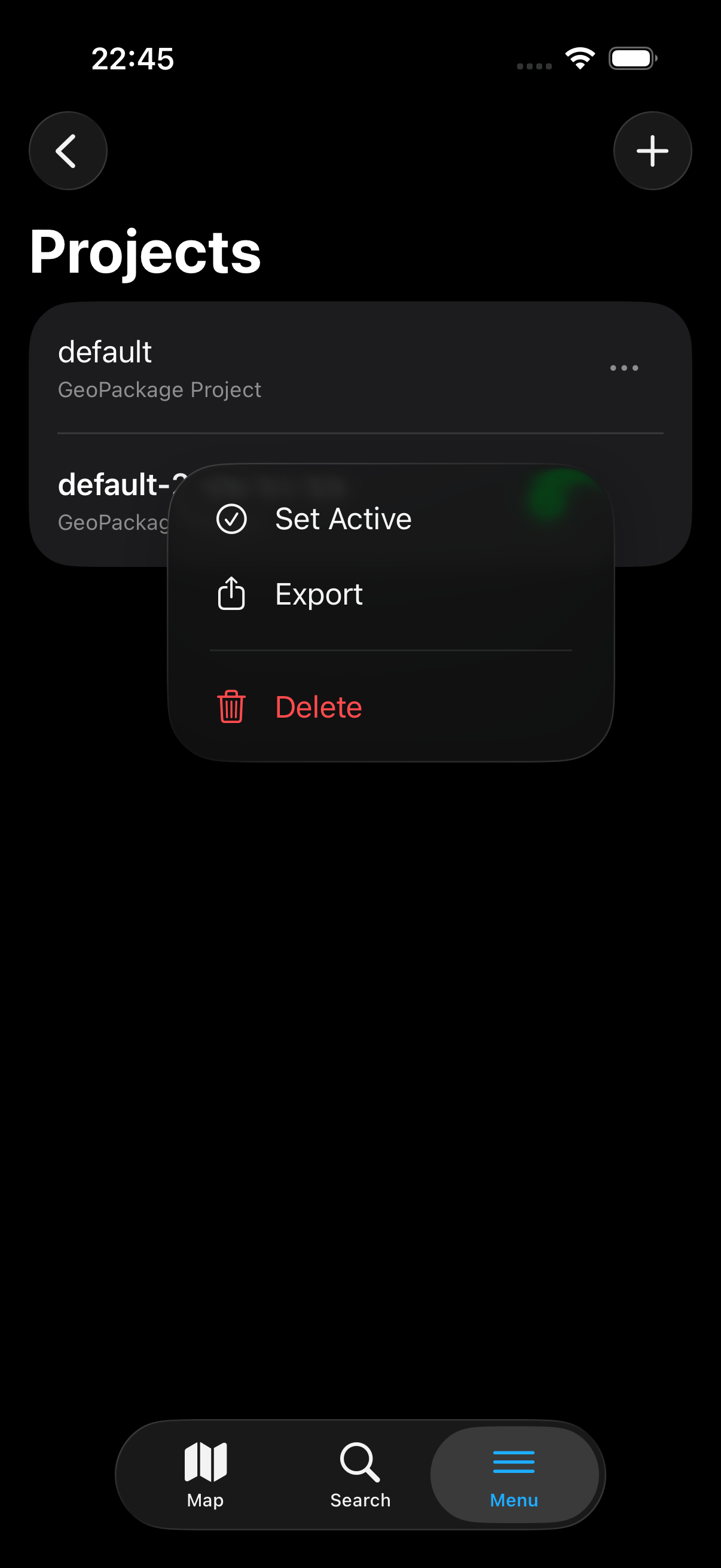
- Tap the ⋯ menu and choose Export (or use the row's context menu).
- The export sheet appears with the following destinations:
- Save to Files — writes the
.gpkgto a folder you pick in the iOS file picker (local, iCloud Drive, or any other configured file provider). - Share — opens the iOS share sheet for AirDrop, Mail, Messages, or any installed share extension.
- Upload to Dropbox — uploads directly to your Dropbox
/Apps/Mapit GIS/folder. Only shown when a Dropbox account is linked under Remote Connections. See Export to Dropbox for the full flow. - Upload via SFTP — uploads the
.gpkgfile to the configured SFTP remote path with a timestamped filename (<project-name>-YYYY-MM-DD.gpkg). Only shown when SFTP credentials are configured under Remote Connections. See Import/Export via SFTP. - ArcGIS Online — uploads the project's
.gpkgfile as a GeoPackage item to your ArcGIS Online content library. The item is tagged Created in Mapit GIS. Requires an ArcGIS Online connection configured under Settings → Remote Connections → ArcGIS Online and a Pro+ subscription. Tapping this option on a lower tier opens the paywall.
- Save to Files — writes the
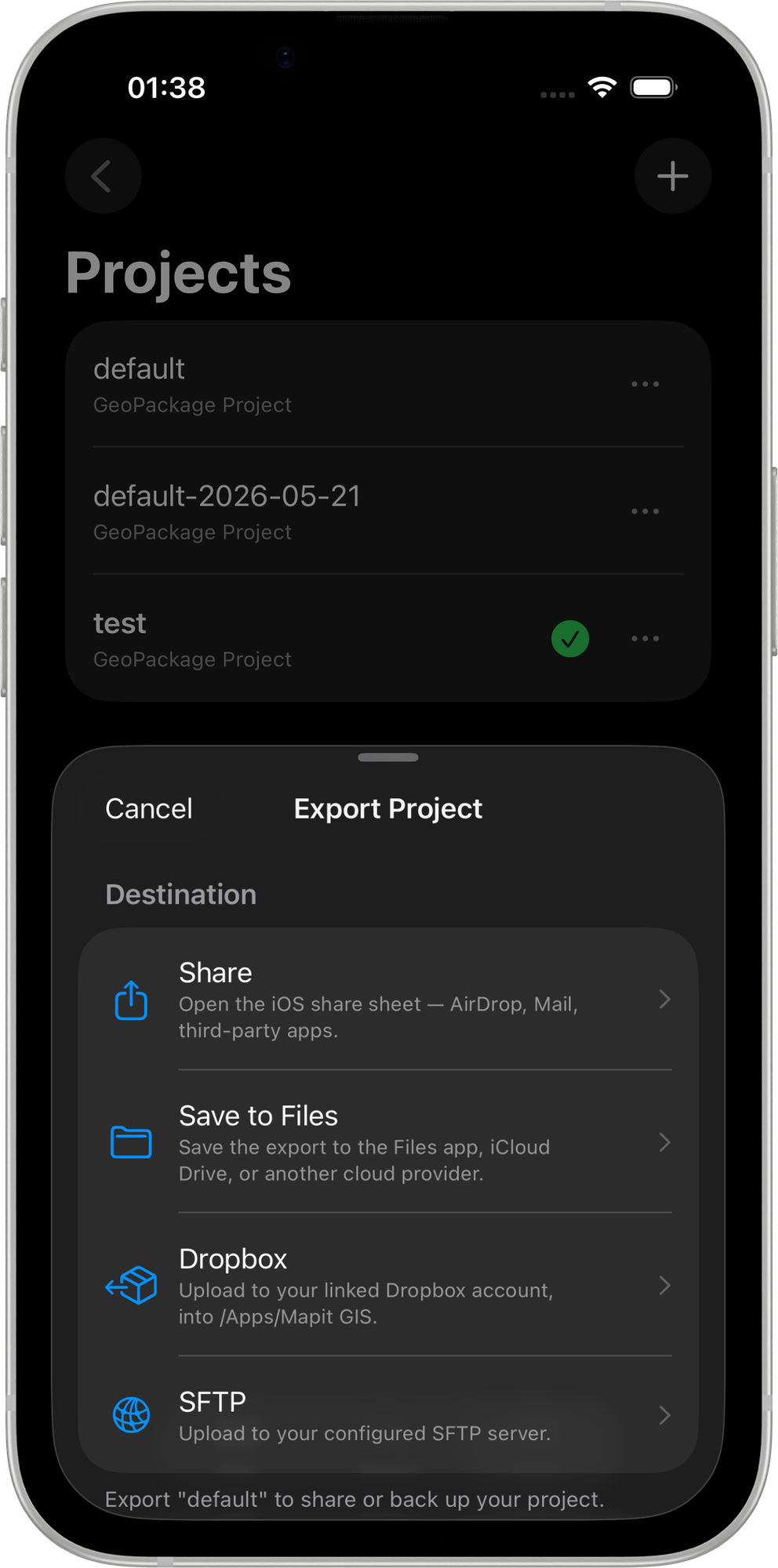
- A confirmation banner appears when the export is complete; Dropbox and SFTP transfers show a progress overlay during the upload.
What Is Included
The exported GeoPackage contains everything stored in the project:
| Data | Included |
|---|---|
| Feature layers and all geometry | Yes |
| Attribute data and field definitions | Yes |
| Layer styles and symbology | Yes |
| Attribute sets and form templates | Yes |
| Spatial indexes | Yes |
| Online service definitions (WMS, WMTS, WFS, XYZ) | Yes |
| Offline map references | Yes |
| Point detail records (accuracy, HDOP, etc.) | Yes |
Attachments (photographs and other files) are stored separately on the device filesystem and are not included in the exported GeoPackage. Back up the attachment folder separately if needed.
Desktop GIS Compatibility
The exported file is a standard OGC GeoPackage and can be opened directly in:
- QGIS - File > Open > select the
.gpkgfile - ArcGIS Pro - Add Data > navigate to the
.gpkgfile - Any SQLite browser - the file is a valid SQLite database
For post-processing and analysis, work on a copy of the exported GeoPackage. Retain the original unchanged so it can be safely re-imported into Mapit GIS if needed.