Exporting Layers
Mapit GIS supports exporting individual feature layers to a range of standard geospatial formats. You can save the exported file to local storage, share it via Android's share menu, upload it to an FTP/SFTP server, or export directly to a PostgreSQL database.
- Android
- iOS
Starting an Export
- Open the Layers screen from the main menu or the map menu.
- Long-press the layer you want to export - a context menu appears.
- Tap Export.
Step 1: Choose the Export Destination
A bottom sheet appears with all export destinations:
| Destination | Description |
|---|---|
| Local Export to Device | Save the file to a folder on your device or SD card |
| Share exported file | Open the Android share menu to send via email, messaging, cloud storage, etc. |
| Export to PostgreSQL | Write features directly to a PostgreSQL/PostGIS database (see Export to PostgreSQL) |
| Export to FTP | Upload the file to a configured FTP or SFTP server (see Import/Export via FTP) |
| Dropbox | Upload directly to your Dropbox /Apps/Mapit GIS/ folder (see Export to Dropbox) |
| ArcGIS Online | Publish the layer to your ArcGIS Online account as a feature service or file (Pro+ only) |
All remote destinations are always visible in the export sheet. If a destination isn't configured yet, tapping it opens a prompt with a direct shortcut to Settings - Remote Connections. Free-tier users see the paywall instead so they can upgrade before setting anything up. ArcGIS Online additionally requires a Pro+ subscription.
Step 2: Choose the Export Format
After selecting Local Export or Share Export, a second bottom sheet presents the available formats:
| Format | Extension | Notes |
|---|---|---|
| GeoJSON | .geojson | Full geometry and attributes. Widely supported. |
| ArcJSON | .json | Esri JSON format for ArcGIS compatibility |
| Shapefile | .zip | Exported as a ZIP archive containing .shp, .shx, .dbf, and .prj files |
| CSV | .csv | Tabular data with coordinates as columns. Best for point layers. |
| KML | .kml | Google Earth format |
| GPX | .gpx | GPS exchange format — waypoints for points, tracks for lines/polygons (polygon holes exported as separate "hole" tracks). Always WGS 84. |
| DXF | .dxf | CAD format — geometry only, no attributes |
| GeoParquet | .parquet | Columnar format; geometry stored as WKB. WGS 84. |
Step 3: Export Execution
After selecting a format:
- Local Export: The Android file picker opens so you can choose a save location and filename.
- Share Export: The file is created in a temporary directory and the Android share sheet opens.
For layers with 1,000 or more features, a progress dialog displays the number of features exported.
Export Settings
Several preferences affect what is included in the exported data. These are found in Settings → Export Settings:
| Setting | Effect |
|---|---|
| Include GPS info | Adds HDOP, VDOP, PDOP, HRMS, and VRMS as properties in exported features (point layers only) |
| Include distance and bearing details | Adds rangefinder data (base coordinates, bearing, distance) to exported properties |
| Export coordinates as fields | Adds latitude/longitude (or X/Y) as attribute columns alongside the geometry |
| Include full path to attachments | Adds the device file path of any attached photographs or files as a property |
Coordinate Reference System
By default, layers are exported in WGS 84 (EPSG:4326). If the layer uses a different coordinate reference system, the geometry is automatically transformed during export.
For maximum compatibility, GeoJSON is the recommended format. It is supported by virtually all GIS software and web mapping libraries.
DXF export includes geometry only - all attribute data is discarded. Use this format only when you need CAD-compatible geometry.
Layer export requires the Import/Export entitlement, available on Pro and Pro+ tiers.
Starting an Export
- Open the Layers screen from the main menu.
- Tap the layer you want to export and select Export.
Export Formats
iOS supports the same export formats as Android:
| Format | Extension | Notes |
|---|---|---|
| GeoJSON | .geojson | Full geometry and attributes. Widely supported. |
| ArcJSON | .json | Esri JSON format for ArcGIS compatibility |
| Shapefile | .zip | Exported as a ZIP archive containing .shp, .shx, .dbf, and .prj files |
| CSV | .csv | Tabular data with coordinates as columns. Best for point layers. |
| KML | .kml | Google Earth format |
| GPX | .gpx | GPS exchange format — waypoints for points, tracks for lines/polygons (polygon holes exported as separate "hole" tracks). Always WGS 84. |
| DXF | .dxf | CAD format — geometry only, no attributes |
| GeoParquet | .parquet | Columnar format; geometry stored as WKB. WGS 84. |
All exports use the Display Format configured in Settings → Units & Coordinates as the output coordinate reference system — there is no separate per-export CRS picker. KML, GPX, and GeoParquet are the exceptions: they always use WGS 84, as required by their format specifications.
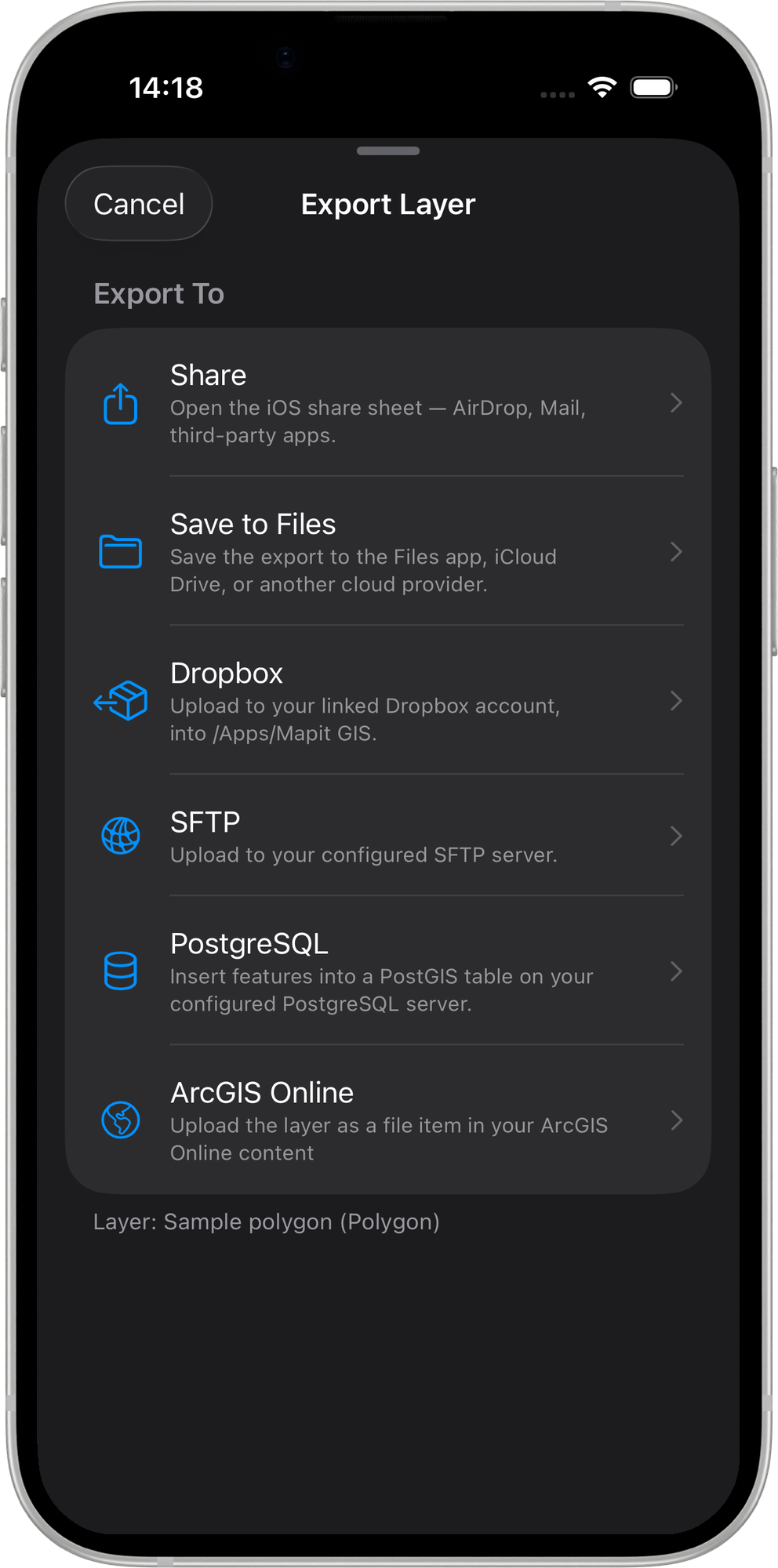
After picking a format, the Destination section offers the following options:
| Destination | Description | Tier |
|---|---|---|
| Share | Opens the iOS share sheet — AirDrop, Mail, Messages, or any installed share extension. | Pro |
| Save to Files | Writes the exported file to a folder you pick in the iOS file picker (local, iCloud Drive, or any configured file provider). | Pro |
| Upload to Dropbox | Uploads the exported file directly to your Dropbox /Apps/Mapit GIS/ folder. Only enabled when a Dropbox account is linked under Remote Connections. A progress bar shows the upload fraction next to the button. See Export to Dropbox for the full flow. | Pro+ |
| Upload via SFTP | Uploads the exported file to your configured SFTP server. Only available when SFTP credentials are configured under Remote Connections. See Import/Export via SFTP. | Pro |
| Export to PostgreSQL — Overwrite | Drops the existing table and creates a fresh one. Requires a PostgreSQL connection configured under Remote Connections. See Exporting to PostgreSQL. | Pro+ |
| Export to PostgreSQL — Append | Inserts features into an existing table, or creates it if it does not exist. See Exporting to PostgreSQL. | Pro+ |
| ArcGIS Online | Publish or upload the layer to your ArcGIS Online account. Requires an ArcGIS Online connection configured under Settings → Remote Connections → ArcGIS Online. See below for the full flow. | Pro+ |
Exporting to ArcGIS Online
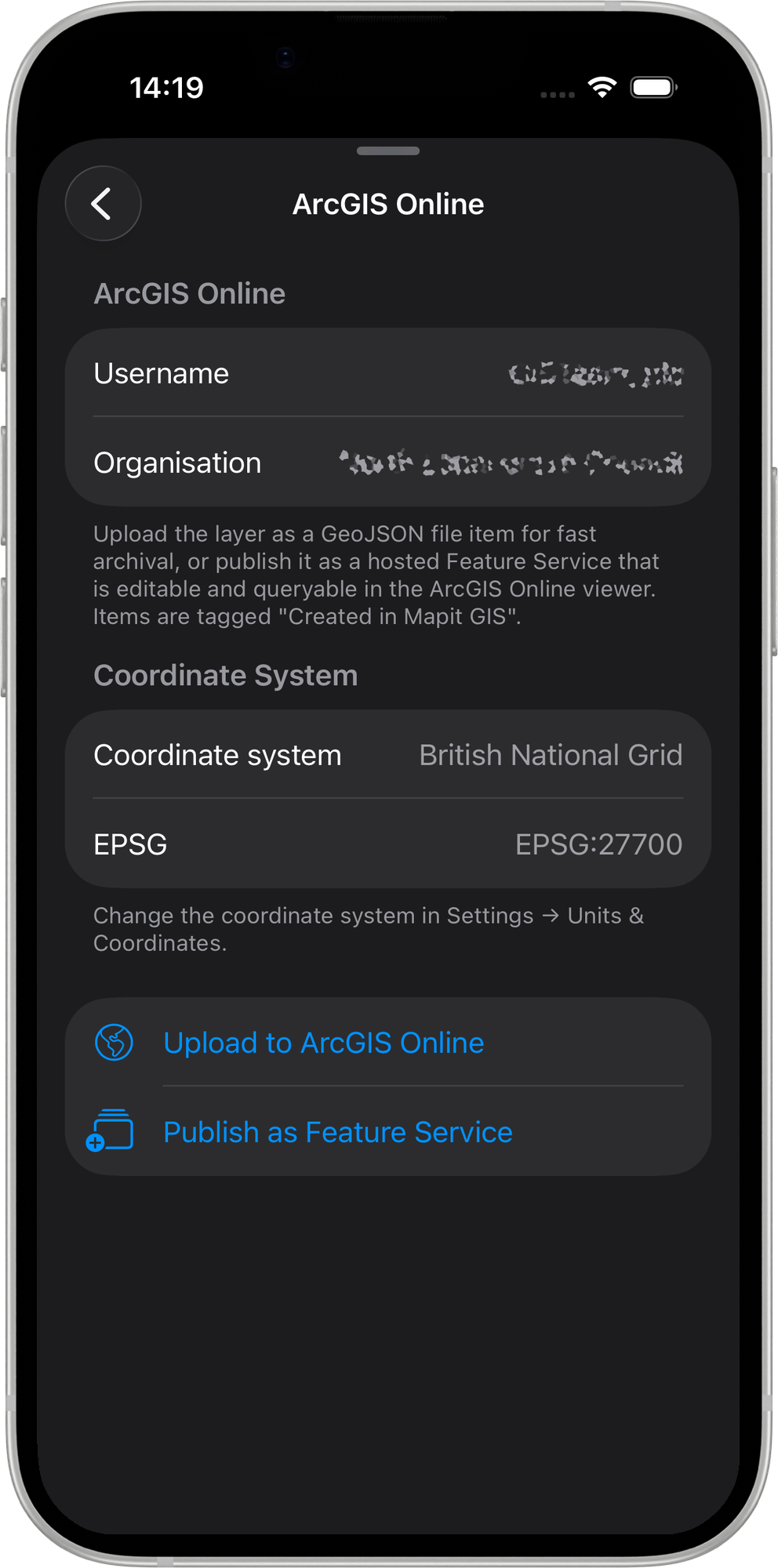
When you tap ArcGIS Online in the destination picker, a second sheet appears with two actions:
| Action | Description |
|---|---|
| Upload to ArcGIS Online | Exports the layer as a GeoJSON file item and uploads it to your ArcGIS Online content library. The item is tagged Created in Mapit GIS and appears in the View Mapit Content browser. |
| Publish as Feature Service | Creates a hosted Feature Service on ArcGIS Online from the layer's features and schema. Features are uploaded in batches and the service is indexed on completion. |
Name collision — Overwrite, Append, or Cancel
If a Feature Service with the same name already exists in your ArcGIS Online account, a Feature Service Exists dialog appears with three options:
| Option | Effect |
|---|---|
| Overwrite | Deletes all existing features in the service and replaces them with the current layer's features. The service URL and item ID are preserved. |
| Append | Adds the current layer's features to the existing service without removing any data. |
| Cancel | Aborts the publish. No changes are made to ArcGIS Online. |
Error messages
| Message | Cause |
|---|---|
| Rate limit exceeded | Too many requests in a short period. Wait a moment and try again. |
| Permission denied — Publisher role required | Your ArcGIS Online account does not have the Publisher role. Contact your organisation administrator. |
| Storage quota exceeded | Your ArcGIS Online account has reached its storage limit. Free up space in your content library and retry. |
Layer export requires the Import/Export entitlement, available on Pro and Pro+ tiers. Upload to Dropbox, Export to PostgreSQL — Overwrite, Export to PostgreSQL — Append, and ArcGIS Online additionally require the Pro+ entitlement — tapping any of these on a lower tier opens the paywall.