Buffer Tool
The Buffer tool generates a polygon buffer at a chosen radius around an existing feature - point, polyline, or polygon. The result is a new polygon inserted into your active polygon layer. Common uses are proximity zones, stand-off boundaries, no-build zones, vegetation buffers, and catchment polygons around point features.
Buffer is part of the Advanced Editing Pro+ feature set. Free and Pro users can see the master toggle in Settings > Advanced Editing but turning it on opens the subscription paywall.
- Android
- iOS
When to use Buffer
- A proximity zone around a point of interest (e.g. 50 m around a monitoring well, 100 m around a tree).
- A stand-off zone along a line (e.g. road kerb buffer, pipeline exclusion zone).
- A growth area around an existing polygon (extending a parcel by 10 m on every side).
- A shrunk area inside an existing polygon (a stand-off zone within a parcel - requires the Allow negative radius setting).
- A ring / donut around an existing polygon (the area within N metres of the boundary, but not the polygon's interior).
Before you start
To use Buffer you need:
- A Mapit Pro Plus subscription.
- The Advanced Editing master toggle on in Settings > Advanced Editing.
- A polygon layer set as the active layer. The buffer is always a polygon and is always written into the active layer; if no polygon layer is active, the Buffer entry shows in the editing-tools sheet with a hint reading "Set a polygon layer as active to use Buffer".
The source feature can be on any layer - the source layer and the destination polygon layer do not need to match. A typical workflow is "tap a point on the points layer, set a polygon layer as active, buffer the point into a 50 m polygon zone in the polygon layer".
The flow
The entry point depends on the source geometry type.
Polygon or polyline source
- Tap an existing polygon or polyline feature to start an edit session on it.
- The right-side toolbar shows the usual edit FABs plus a Tools chip near the top.
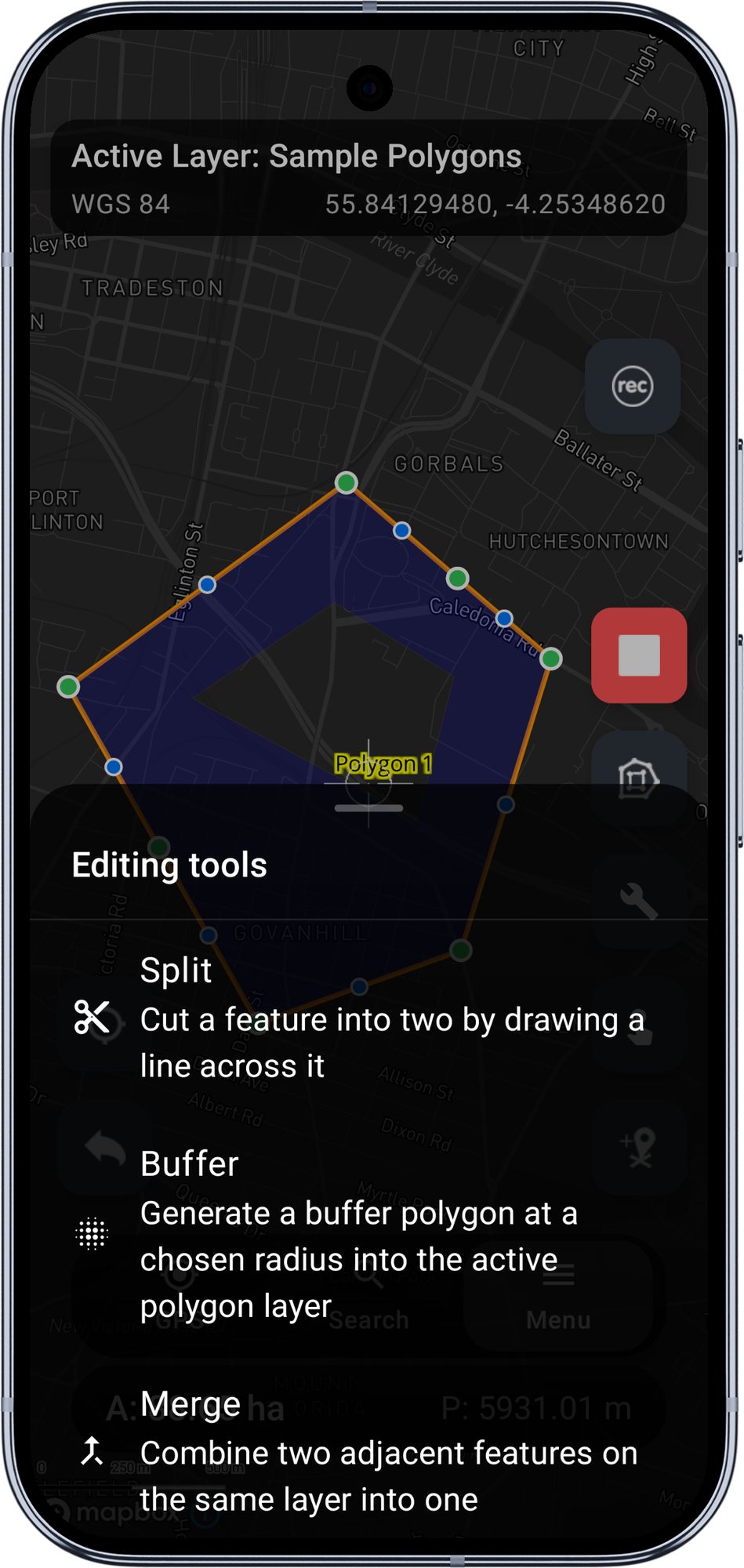
- Tap Tools to open the editing-tools bottom sheet. With v1 the sheet shows two entries: Split and Buffer. The Buffer entry is enabled when your active layer is a polygon.
- Tap Buffer. The regular FABs are hidden and a compact card slides up above the bottom navigation: title "Buffer feature", the current radius value (default 50 m), a slider, and Cancel / Apply buttons.
Point source
- Tap an existing point feature. The standard Edit Point Coordinates dialog opens (the same dialog Mapit uses to edit a point's lng/lat directly).
- Below the coordinate inputs, when the active layer is a polygon and you have Pro+, you will see an Advanced editing tools section with a small-print line "Available: Buffer" and an outlined Open advanced tools button.
- Tap Open advanced tools. The dialog closes and the editing-tools sheet opens in point-source mode - only the Buffer entry is shown (Split is meaningless for points).
- Tap Buffer to open the same Buffer card.
Adjust the radius
Drag the slider. The buffered polygon is recomputed and re-rendered on every tick - usually sub-millisecond per recompute. The preview is drawn in teal with a slightly darker outline so it reads clearly against your basemap and does not clash with the green / blue colours the Split preview uses.
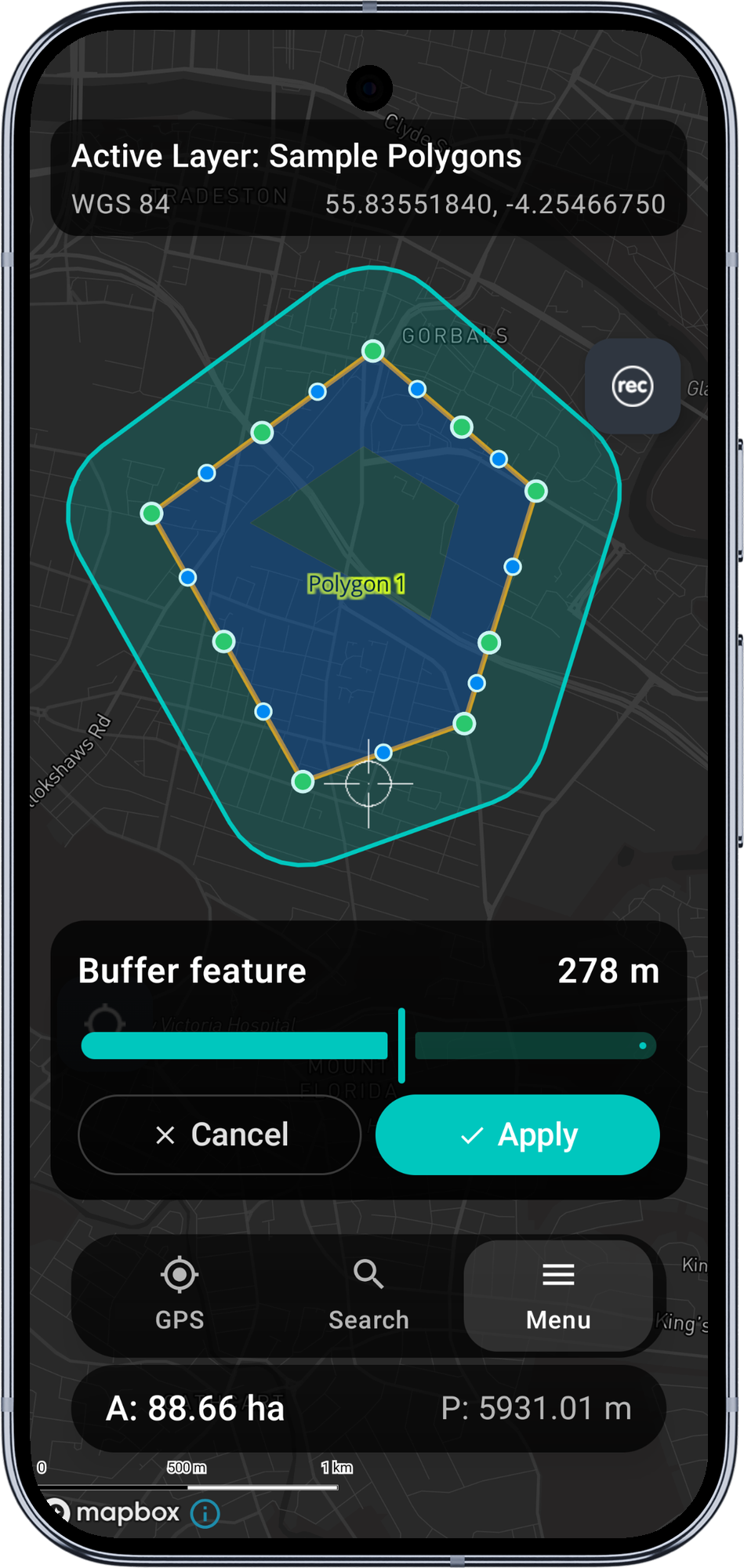
The slider range is 1 to 500 m by default. If you turn on Allow negative radius in the settings AND the source is a polygon AND the shape is Filled, the slider expands to -500 to +500 m, where negative values shrink the polygon inwards.
The Apply button is enabled only when the current radius produces a valid (non-empty) buffer.
Apply or Cancel
- Apply writes a single new row to the active polygon layer with the current buffer geometry and immediately re-renders the layer so the new feature appears on the map. A toast confirms with the destination table name. Attributes for the new row are blank by default - the buffer is a fresh feature, not a copy of the source.
- Cancel discards the preview without writing. The polygon / polyline edit session is restored (you can keep editing the source); the point-source flow returns you to the bare map.
Buffer shape: Filled vs Ring
The Buffer shape setting controls what the algorithm produces:
- Filled (default) - the standard fat buffer polygon. Source plus a margin of the chosen radius.
- Ring - the donut shape around a polygon source: the buffer polygon minus the original polygon. The result is just the band of area within N metres of the boundary, with the source's interior left out. Useful for vegetation buffers and "everything within N metres of the parcel edge" workflows.
Ring shape only makes sense for polygon sources with a positive radius. The slider gating in the toolbar enforces both: ring sources never see negative slider values.
For point sources, shape is forced to Filled regardless of the setting (a ring around a single point is geometrically degenerate without an inner radius too).
Corner style
The Corner style setting maps directly to JTS join-style:
- Round (default) - smooth curved corners. Standard buffer look.
- Mitre - sharp corners that extend the source's edges to a point. CAD-feel for cadastral / regular shapes (buildings, parcels look "right" with mitred buffers).
- Bevel - clipped sharp corner. The corner is replaced with a flat edge between the offset edges.
Line end caps
Only relevant when buffering polylines:
- Round (default) - rounded semi-circular caps at each line end.
- Flat - the buffer is clipped flat at the line endpoint. Useful for road centerlines buffered into a carriageway, where rounded ends look weird.
- Square - the buffer extends past the line end by the radius distance, with a square cap.
Allow negative radius (shrink)
Off by default. When on, AND the source is a polygon, AND the shape is Filled, the slider exposes negative values. A negative radius shrinks the polygon inwards by that distance. Useful for stand-off zones inside a parcel ("everything more than 5 m from the boundary").
The slider gating is conservative on purpose: shrink is only valid for filled-polygon sources, so the toolbar shows the full -500 to +500 range only in that combination. Points, lines, and ring-shape sources always see the positive-only 1 to 500 range.
Accuracy notes
Mapbox features carry geometry in WGS84 lng/lat. A radius value in metres needs to be converted to degrees before JTS can apply it. Mapit does this with a closed-form metric pre-scaling at the source's latitude:
- The source coordinates are scaled into a metric space so 1 unit = 1 metre on both axes at the source latitude.
- JTS buffers in metres directly (truly isotropic in metres, regardless of latitude).
- The result is unscaled back to lng/lat.
The result reads as a real circle on the map at any latitude. This matters at non-equatorial latitudes (UK, Scandinavia, Canada), where 1 degree of longitude is significantly shorter than 1 degree of latitude - without this pre-scaling, a 370 m buffer at lat 58°N would appear as a noticeable N-S elongated ellipse.
The accuracy is sub-1% for typical urban-scale buffers (radius < 1 km) at temperate latitudes - well within the precision range field surveying actually needs.
Limitations in v1
- Multipolygon / multilinestring features are not supported as sources - the Tools chip / dialog section is hidden for them.
- WFS layers as sources never see Buffer - they are read-only.
- Multi-ring buffers (10 m, 20 m, 30 m at once) are not supported.
- Buffer + dissolve across multiple sources is not supported.
- Single-sided line buffer (one side of a line only) is not supported - both sides are always buffered.
- Smoothness of round corners is fixed at JTS' default (8 segments per quadrant, ~32-sided circle approximation).
Requirements
- A Mapit Pro Plus subscription (Android).
- Advanced Editing master toggle on in Settings > Advanced Editing.
- A polygon layer set as active (the destination for the buffer).
When to use Buffer
- A proximity zone around a point of interest (e.g. 50 m around a monitoring well, 100 m around a tree).
- A stand-off zone along a line (e.g. road kerb buffer, pipeline exclusion zone).
- A growth area around an existing polygon (extending a parcel by 10 m on every side).
- A shrunk area inside an existing polygon (a stand-off zone within a parcel — requires the Allow negative radius setting).
- A ring / donut around an existing polygon (the area within N metres of the boundary, but not the polygon's interior).
Before you start
To use Buffer you need:
- A Mapit Pro Plus subscription.
- The Advanced Editing master toggle on in Settings > Advanced Editing.
- A polygon layer set as the active layer. The buffer is always a polygon and is always written into the active layer; if no polygon layer is active, the Buffer entry shows in the editing-tools sheet with a hint reading "Set a polygon layer as active to use Buffer".
The source feature can be on any layer — the source layer and the destination polygon layer do not need to match. A typical workflow is "tap a point on the points layer, set a polygon layer as active, buffer the point into a 50 m polygon zone in the polygon layer".
The flow
The entry point depends on the source geometry type.
Polygon or polyline source
- Tap an existing polygon or polyline feature, then tap Edit geometry from the feature info menu to start an edit session.
- The right-side toolbar shows the usual edit FABs plus a Tools chip near the top.
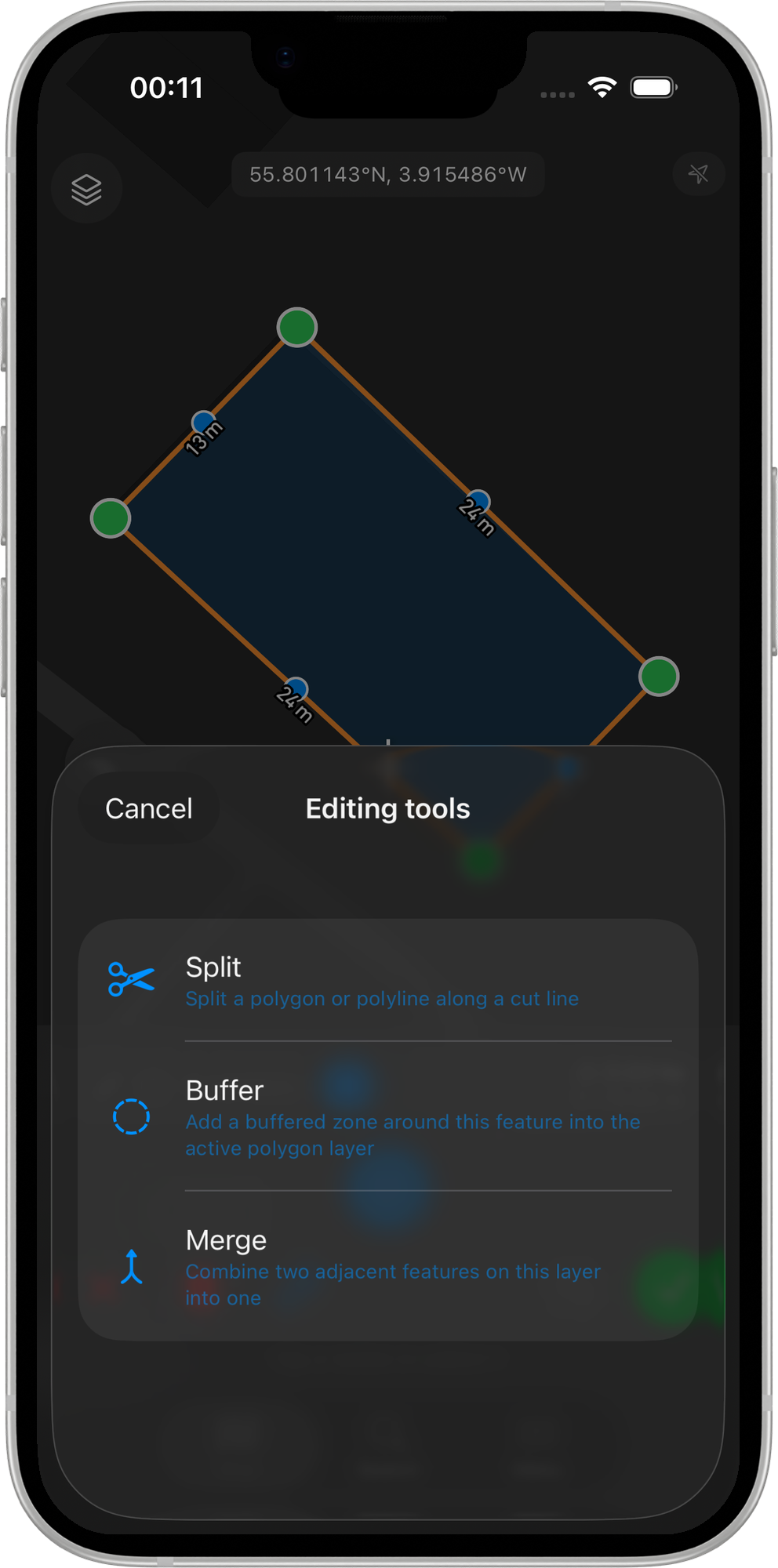
- Tap Tools to open the editing-tools bottom sheet. With v1 the sheet shows three entries: Split, Buffer, and Merge. The Buffer entry is enabled when your active layer is a polygon.
- Tap Buffer. The regular edit FABs are replaced by a compact card above the bottom safe area with a prompt, the current radius value (default 10 m), a slider, and Cancel / Apply buttons.
Point source
iOS does not have a textfield-based coordinate-edit dialog like Android, so the point-source entry is in the feature info sheet instead of in a dialog:
- Tap an existing point feature. The feature info sheet slides up with a row for the tapped point.
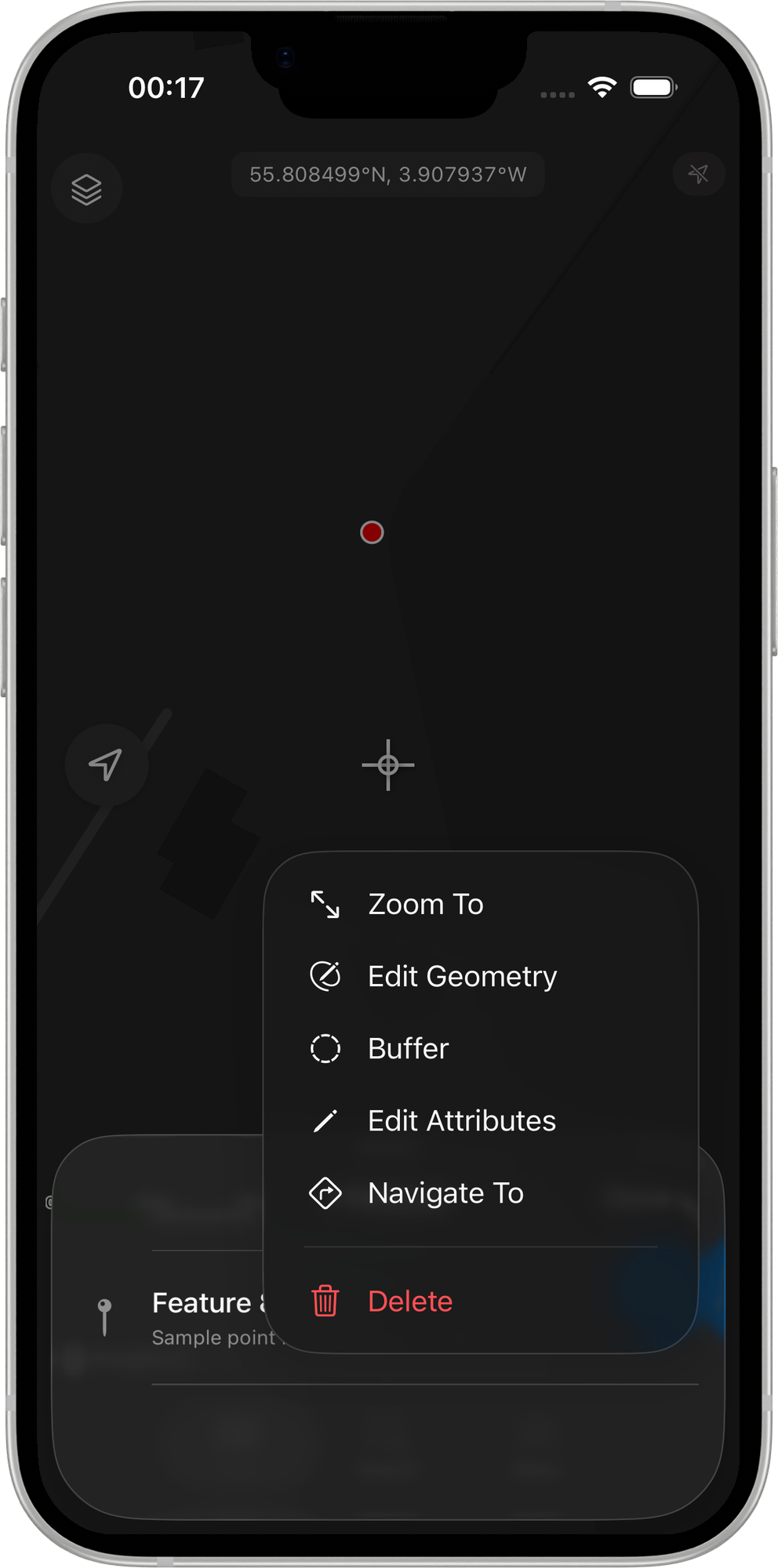
- Tap the ellipsis menu on that row. When the active layer is a polygon and you have Pro+, a Buffer action appears in the menu alongside Edit geometry, Edit attributes, etc.
- Tap Buffer. The feature info sheet dismisses and the Buffer card opens directly — no edit session needs to be started.
The Buffer flow from there is identical to the polygon / polyline entry point.
Adjust the radius
Drag the slider. The buffered polygon is recomputed and re-rendered on every tick — usually sub-millisecond per recompute. The preview is drawn in blue with a matching outline so it reads clearly against your basemap and does not clash with the green / blue colours the Split preview uses.
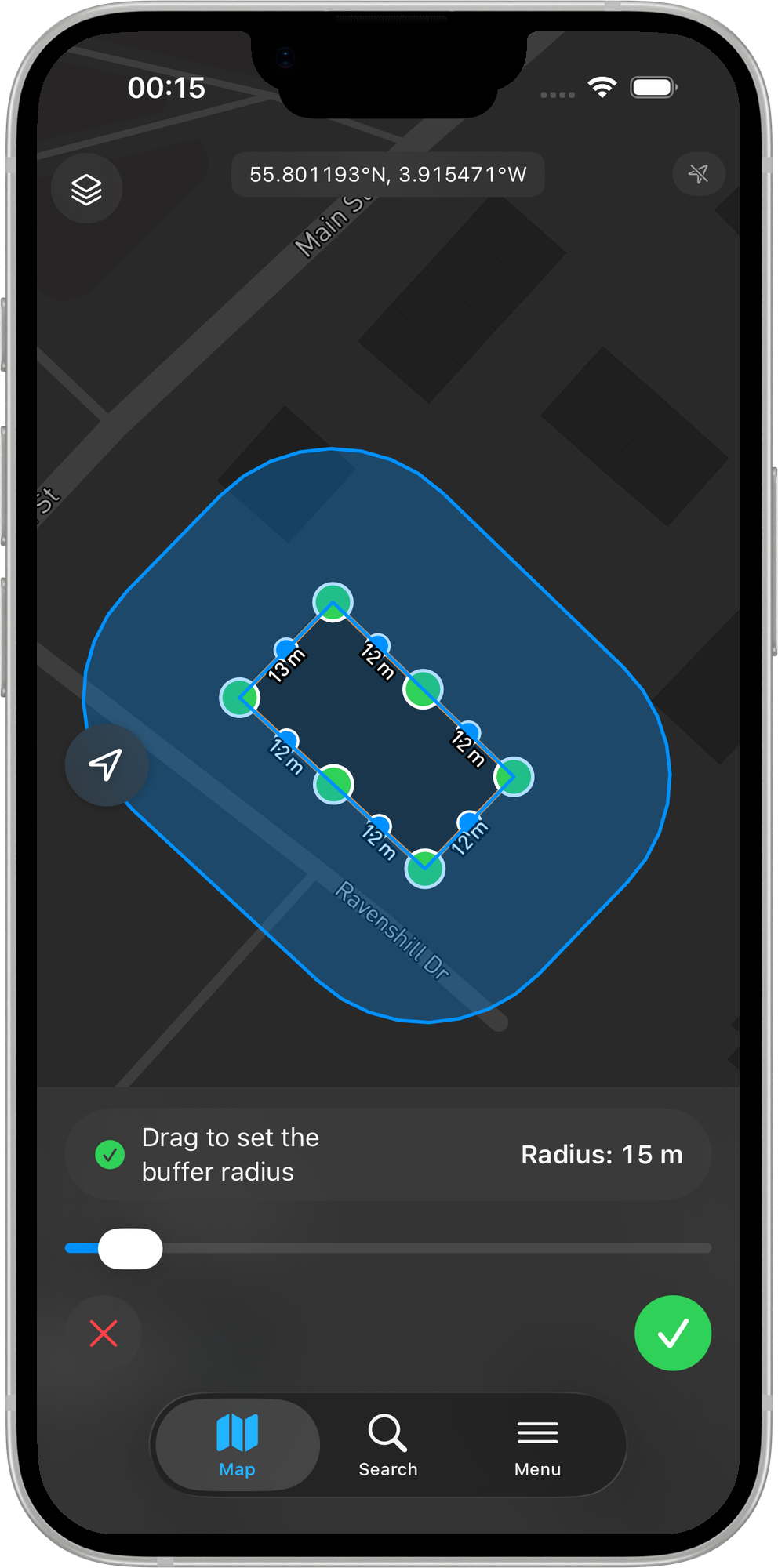
The slider range is 1 to 500 m by default and can be expanded to 100 m – 10 km via the Maximum radius setting. If you turn on Allow negative radius AND the source is a polygon AND the shape is Filled, the slider expands to symmetric -max … +max, where negative values shrink the polygon inwards.
The Apply button is enabled only when the current radius produces a valid (non-empty) buffer.
Apply or Cancel
- Apply writes a single new row to the active polygon layer with the current buffer geometry and immediately re-renders the layer so the new feature appears on the map. Attributes for the new row are blank by default — the buffer is a fresh feature, not a copy of the source. For the polygon / polyline flow the edit session is also committed at this point (any in-flight edits to the source land too); for the point-source flow there was no edit session to begin with, so nothing else changes.
- Cancel discards the preview without writing. For the polygon / polyline flow the edit session is restored (you can keep editing the source); the point-source flow returns you to the bare map.
Buffer shape: Filled vs Ring
The Buffer shape setting controls what the algorithm produces:
- Filled (default) — the standard fat buffer polygon. Source plus a margin of the chosen radius.
- Ring — the donut shape around a polygon source: the buffer polygon minus the original polygon. The result is just the band of area within N metres of the boundary, with the source's interior left out. Useful for vegetation buffers and "everything within N metres of the parcel edge" workflows.
Ring shape only makes sense for polygon sources with a positive radius. The slider gating in the toolbar enforces both: ring sources never see negative slider values.
For point sources, shape is forced to Filled regardless of the setting (a ring around a single point is geometrically degenerate without an inner radius too).
Corner style
The Corner style setting maps directly to GEOS join-style:
- Round (default) — smooth curved corners. Standard buffer look.
- Mitre — sharp corners that extend the source's edges to a point. CAD-feel for cadastral / regular shapes (buildings, parcels look "right" with mitred buffers).
- Bevel — clipped sharp corner. The corner is replaced with a flat edge between the offset edges.
Line end caps
Only relevant when buffering polylines:
- Round (default) — rounded semi-circular caps at each line end.
- Flat — the buffer is clipped flat at the line endpoint. Useful for road centerlines buffered into a carriageway, where rounded ends look weird.
- Square — the buffer extends past the line end by the radius distance, with a square cap.
Allow negative radius (shrink)
Off by default. When on, AND the source is a polygon, AND the shape is Filled, the slider exposes negative values. A negative radius shrinks the polygon inwards by that distance. Useful for stand-off zones inside a parcel ("everything more than 5 m from the boundary").
The slider gating is conservative on purpose: shrink is only valid for filled-polygon sources, so the toolbar shows the symmetric negative range only in that combination. Points, lines, and ring-shape sources always see the positive-only range.
Accuracy notes
Mapbox features carry geometry in WGS84 lng/lat. A radius value in metres needs to be converted to degrees before GEOS can apply it. Mapit does this with a closed-form metric pre-scaling at the source's latitude:
- The source coordinates are scaled into a metric space so 1 unit = 1 metre on both axes at the source latitude.
- GEOS buffers in metres directly (truly isotropic in metres, regardless of latitude).
- The result is unscaled back to lng/lat.
The result reads as a real circle on the map at any latitude. This matters at non-equatorial latitudes (UK, Scandinavia, Canada), where 1 degree of longitude is significantly shorter than 1 degree of latitude — without this pre-scaling, a 370 m buffer at lat 58 °N would appear as a noticeable N-S elongated ellipse.
The accuracy is sub-1% for typical urban-scale buffers (radius < 1 km) at temperate latitudes — well within the precision range field surveying actually needs.
Limitations in v1
- MultiPolygon / MultiLineString features are not supported as sources — the Tools chip is hidden for them.
- WFS layers as sources never see Buffer — they are read-only.
- Multi-ring buffers (10 m, 20 m, 30 m at once) are not supported.
- Buffer + dissolve across multiple sources is not supported.
- Single-sided line buffer (one side of a line only) is not supported — both sides are always buffered.
- Smoothness of round corners is fixed at the GEOS default (8 segments per quadrant, ~32-sided circle approximation).
Requirements
- A Mapit Pro Plus subscription (iOS).
- Advanced Editing master toggle on in Settings > Advanced Editing.
- A polygon layer set as active (the destination for the buffer).
Related Topics
- Split Operation - Cut an existing polygon or polyline into two features.
- Merge Tool - Combine two adjacent features on the same layer into one.
- Advanced Editing Settings - Configure buffer shape, corner style, line end caps, and the allow-shrink toggle.
- Vertex Snapping - Snap new vertices to existing features for clean topology.
- Mapit Pro Plus - What is included in the Pro+ subscription.