Linking Layer Fields
This section explains how to connect layer fields with predefined value sources to enable dropdowns, multiselection lists, barcode scanning, and value relations during data capture.
Overview
A layer field can look up its values from one of two sources:
- Attribute Set - a curated, fixed list of values you define once and reuse across layers. Supports dropdowns, multiselect lists, and barcode scanning.
- Another layer (Value Relation) - the distinct values currently entered in a column of another layer in the same GeoPackage. The dropdown stays in step with your data as you collect it. This is ideal for keeping a shared identifier consistent across layers - for example, picking an existing
FarmerID(entered as free text on aGGBL_Farmerslayer) when recording farms, plots, or visits on other layers.
In both cases the field becomes a controlled dropdown: only listed values can be saved, which keeps your data consistent. Field data types must match - a numeric field can only be linked to a numeric source, and a text field to a text source; incompatible sources are not offered.
- Android
- iOS
Editing layer configuration
- Open Main Menu → Manage layers
- Select a layer created earlier and press
Edit- the pencil icon on the context menu.
Linking a field
- Select a layer field
- From the context menu press Link - the chain-link icon
- Under Look up values from, choose Attribute set or Another layer
- Pick the source (see below)
- Press OK, then save changes
Looking up values from an Attribute Set
- Set Look up values from to Attribute set
- Choose:
- Attribute Set
- Attribute Field
The dropdown is filled with the values defined in that Attribute Set field.
Looking up values from another layer (Value Relation)
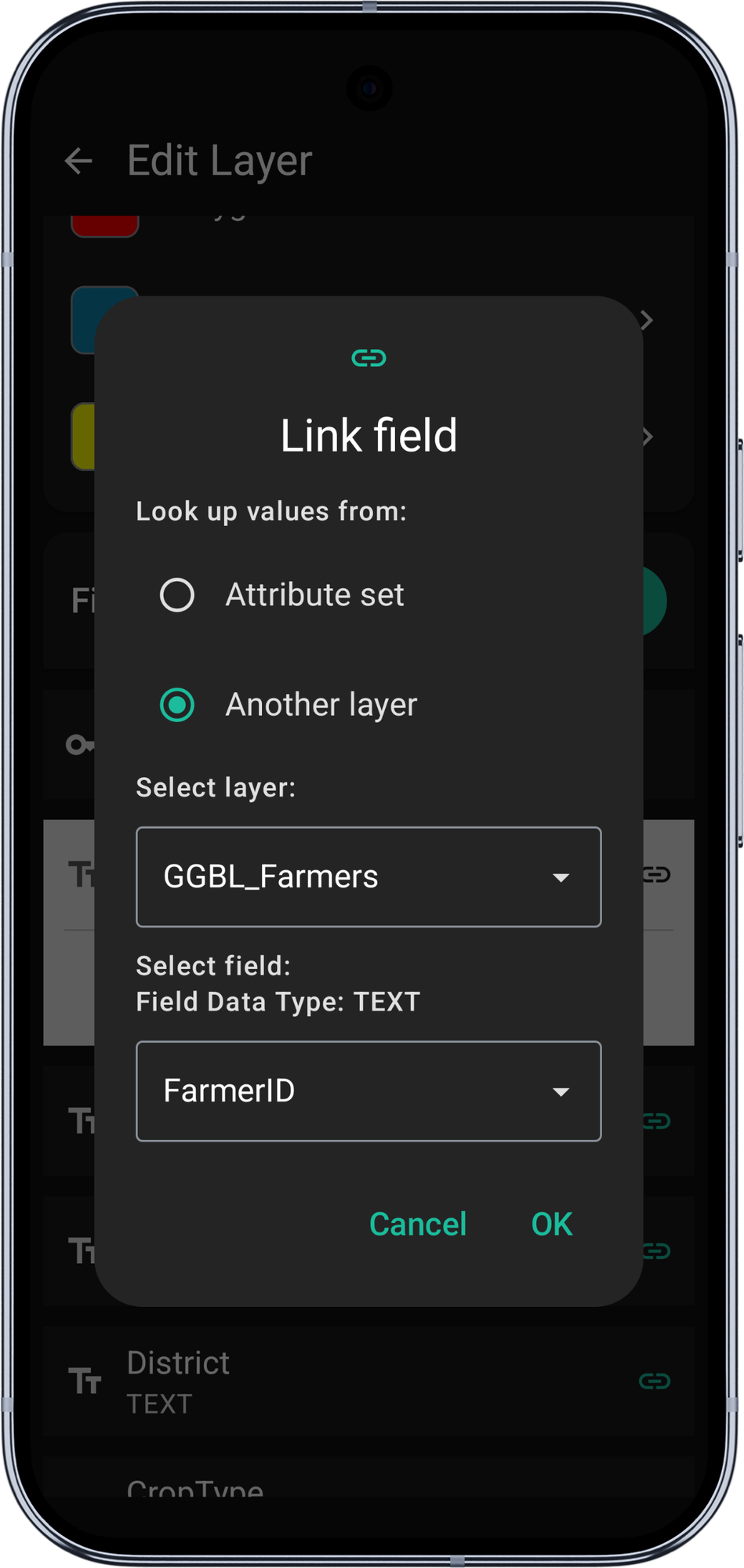
- Set Look up values from to Another layer
- Select layer - any other feature layer in the same GeoPackage
- Select field - only columns whose data type matches the field are listed; the selected column's data type is shown above the picker
- Press OK, then save changes
If the source layer or column is later deleted or renamed, Mapit silently clears the dangling link the next time you edit the layer (Manage layers → Edit) or add/edit a record. The field reverts to free text or numeric entry; no manual cleanup is required.
Editing layer configuration
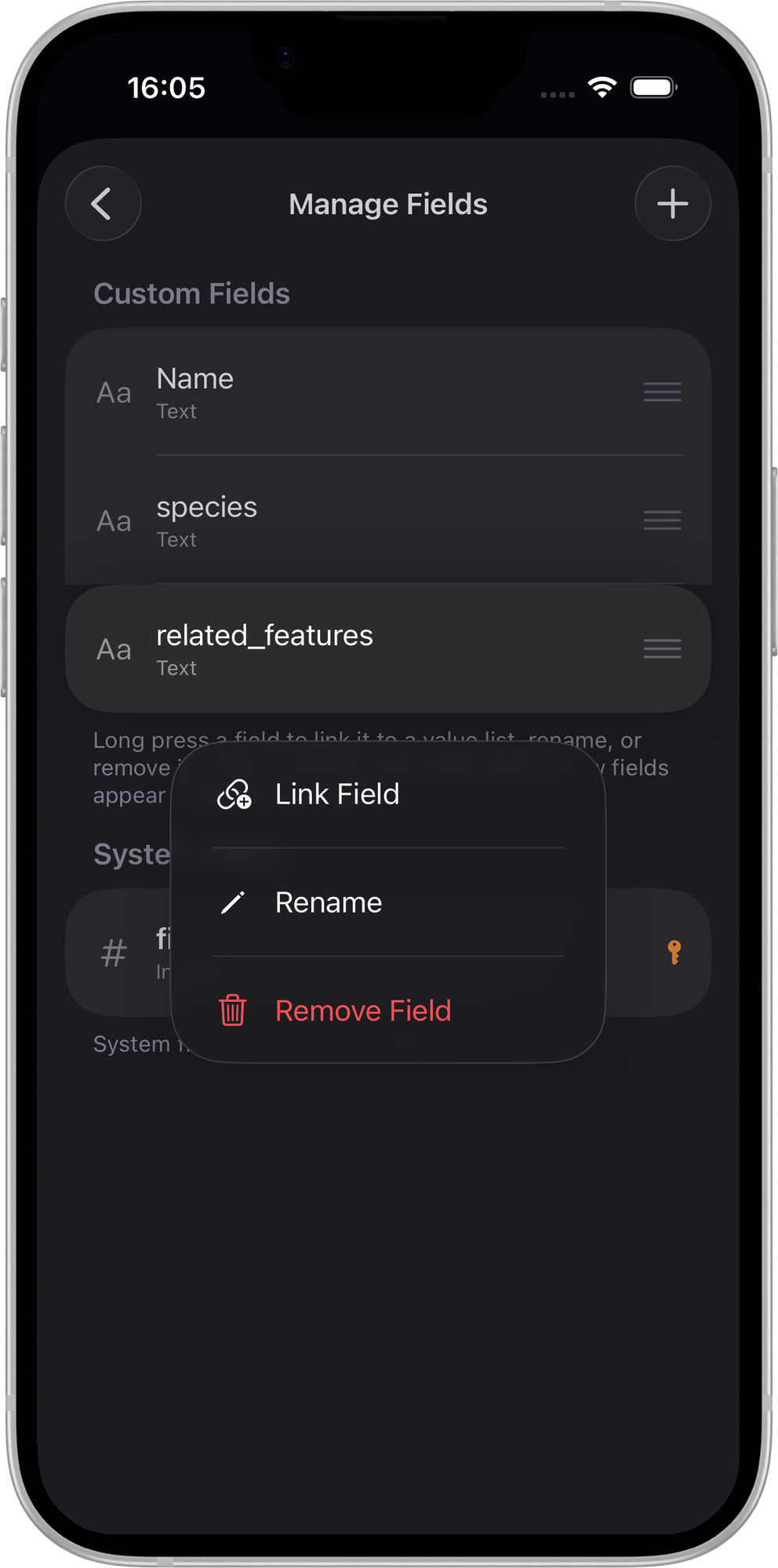
- Open Main Menu → Manage Layers
- Tap a layer to select it, then tap Manage Fields
Linking a field
- Long press a field to open the context menu
- Tap Link Field
- Under Value Source, choose Attribute Set or Another Layer
- Pick the source (see below)
- Tap Link to save
Looking up values from an Attribute Set
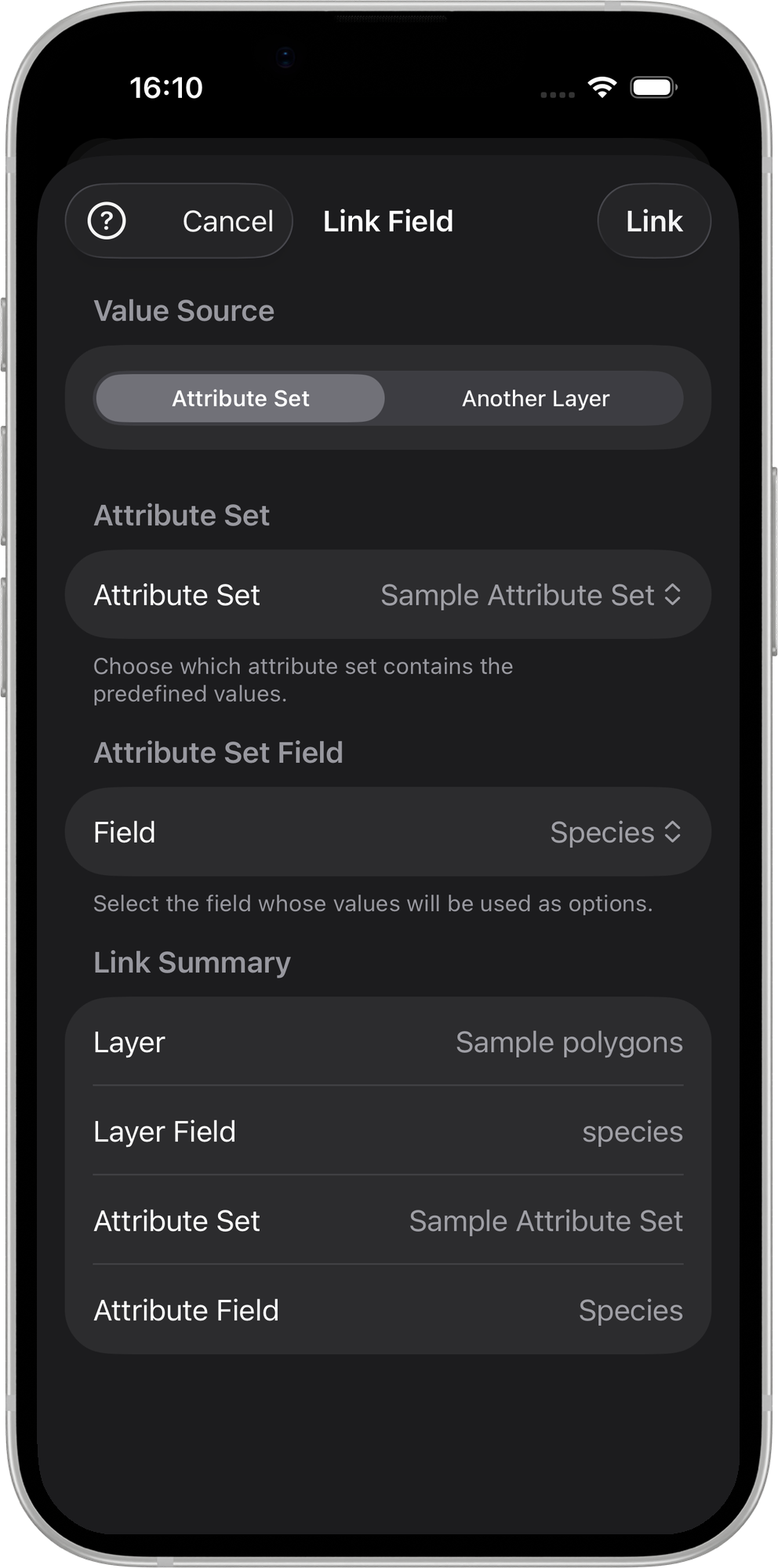
- In the Link Field sheet, set Value Source to Attribute Set
- Choose:
- Attribute Set - the set to draw values from
- Attribute Set Field - the specific field within that set
- The Link Summary at the bottom confirms the configured link
- Tap Link to save
The dropdown on the edit-attributes form is then filled with the values defined in the chosen Attribute Set field.
Looking up values from another layer (Value Relation)
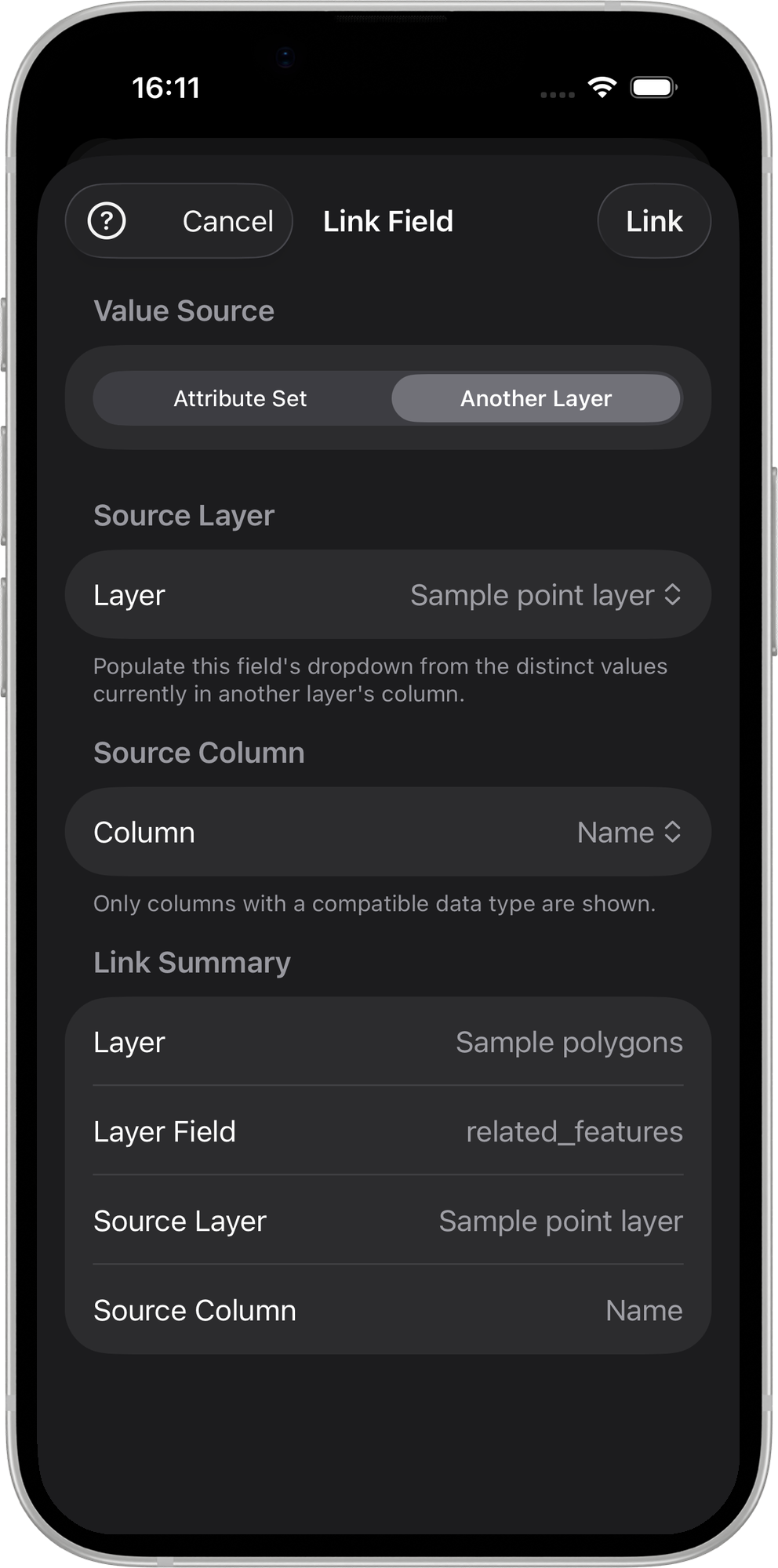
- In the Link Field sheet, set Value Source to Another Layer
- Source Layer - choose any other feature layer in the same GeoPackage
- Source Column - only columns whose data type matches the field being linked are listed
- The Link Summary at the bottom confirms the configured relation
- Tap Link to save
If the source layer or column is later deleted or renamed, Mapit silently clears the dangling link the next time you open Manage Fields or an add/edit-record form. No manual cleanup is required.
How linked fields appear in the form
On the Edit Attributes form a linked field shows a dropdown of its allowed values.
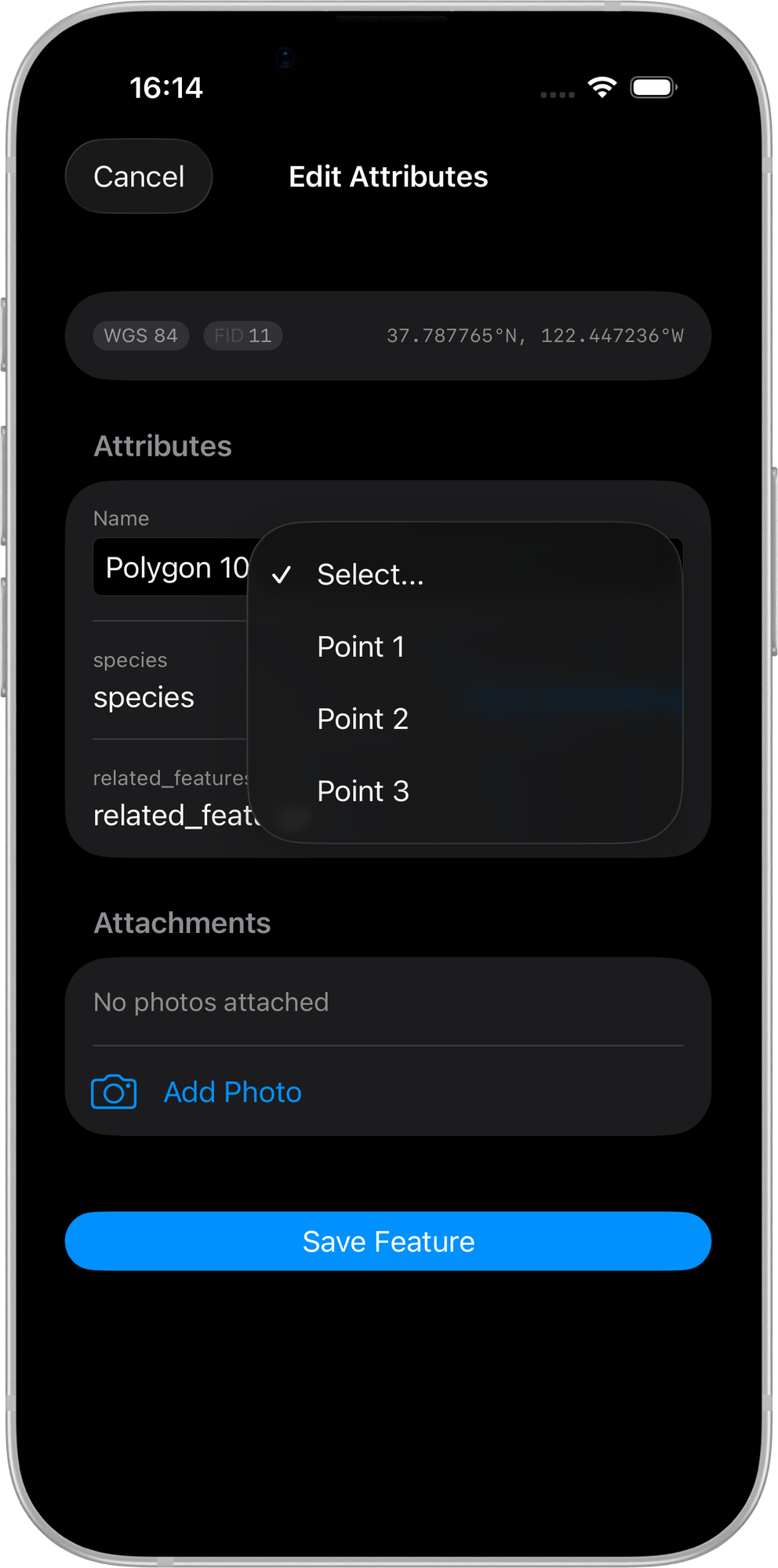
A Value Relation dropdown lists the distinct values read live from the source layer's column.
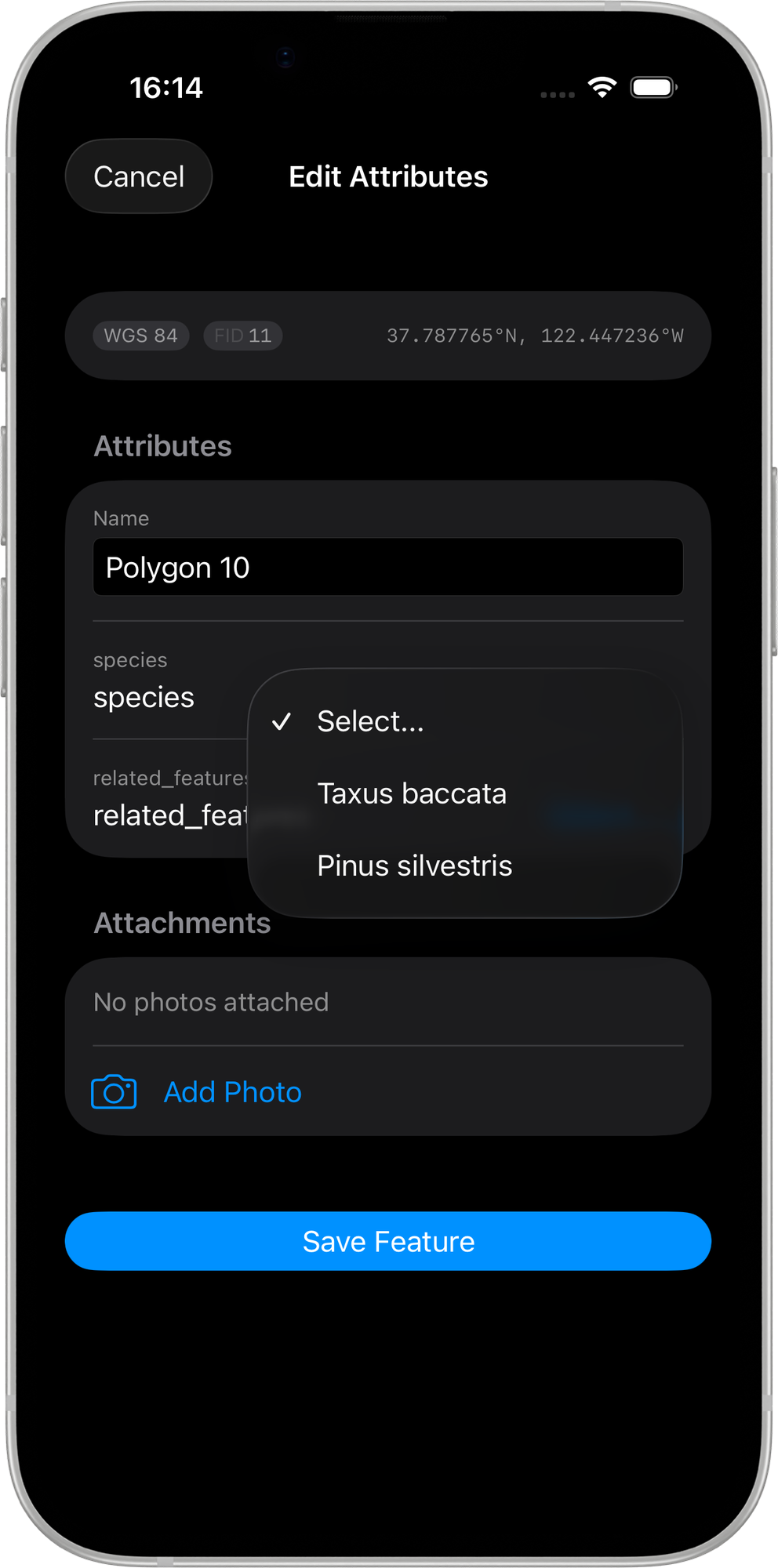
An Attribute Set dropdown shows the values defined in the linked Attribute Set field.
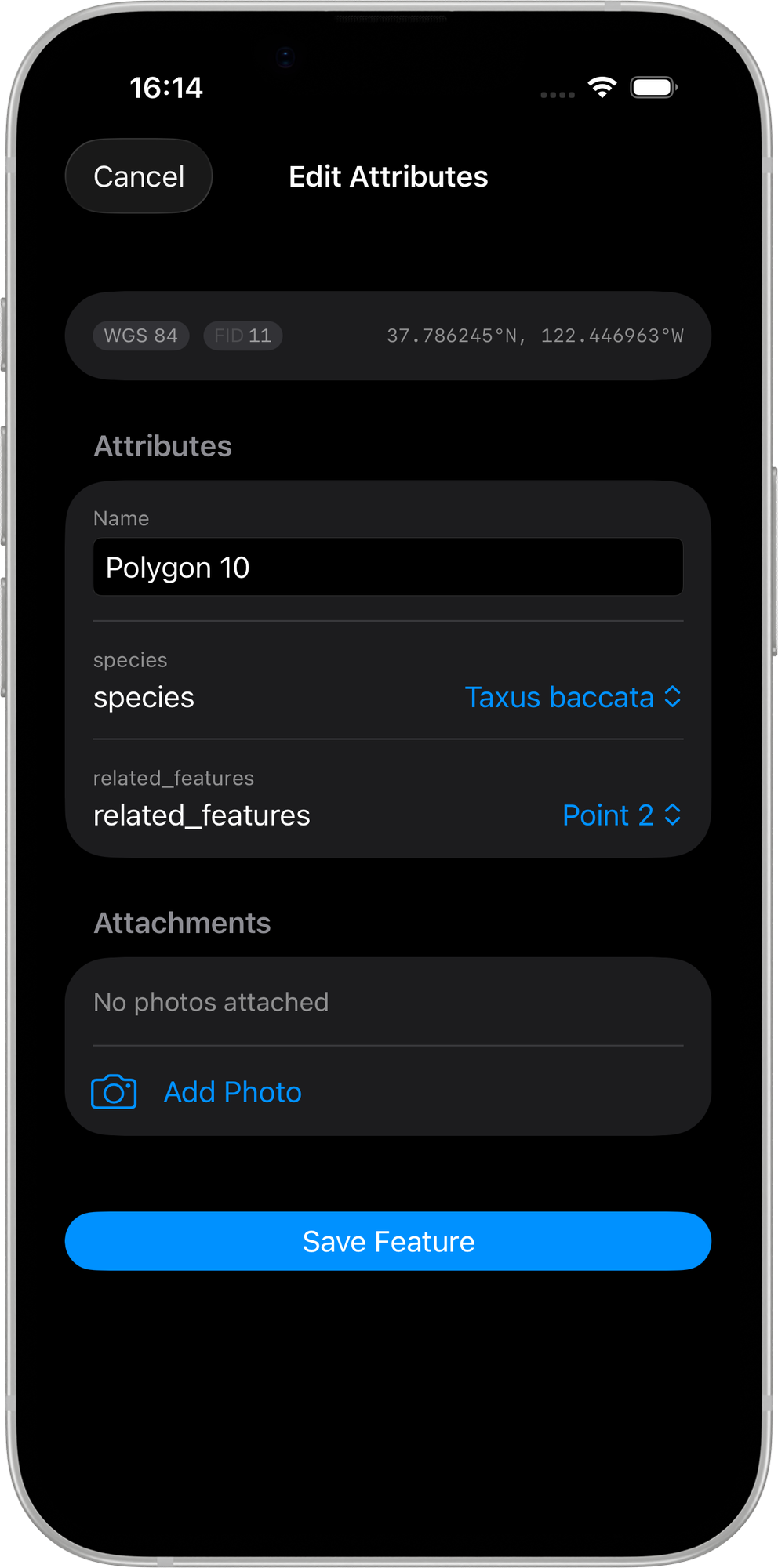
The form once selections have been made from both a Value Relation and an Attribute Set dropdown.
Value Relation behaviour
- The dropdown lists the distinct, non-empty values currently present in the source column, refreshed each time you open the attribute form
- Only listed values can be saved (strict pick-list)
- Values are read live, so new entries on the source layer appear automatically
- The source layer must live in the same GeoPackage
A Value Relation reads values directly from the other layer - there is no Attribute Set to maintain. Just keep collecting data on the source layer and the dropdown stays current.
Searching long dropdowns
When a single-select dropdown has more than a handful of values - common for Value Relations built from live data - the field opens a searchable picker instead of a plain list.
- Tap the field to open the picker
- Start typing to filter; matching is prefix-first (values that start with what you type), falling back to a contains match when nothing starts with it
- Tap a value to select it
This applies to both Attribute Set and Value Relation dropdowns.
Dropdown Lists
Dropdowns are used when a single value must be selected.
Requirements
- Layer field type: TEXT / INTEGER / DOUBLE
- A source of values: an Attribute Set field with predefined values, or a matching column on another layer (Value Relation)
Behaviour
- Only one value can be selected
- Values are validated against the linked source
- Default values are supported (Attribute Set links)
- Long value lists open a searchable picker
Multiselection Lists
Multiselection allows choosing multiple values from the same Attribute Set field.
Requirements
- Layer field type: TEXT
- Attribute Set field type: MULTISELECT
Storage Format
Selected values are stored as:
value1;value2;value3
Barcode and QR Code Fields
Barcode fields enable camera-based scanning.
Requirements
- Layer field type: TEXT
- Attribute Set field type: BARCODE
Behaviour
- On a field data entry automatically opens camera scanner
- Manual entry is still possible
Validation Rules
When a field is linked:
- Only allowed values can be saved
- Empty values cannot be stored except the BARCODE type.
Example Configuration
| Layer Field | Source | Source Field / Column | Widget |
|---|---|---|---|
| species | Attribute Set: Trees | Species | Dropdown |
| defects | Attribute Set: Inspections | DefectTypes | Multiselect |
| asset_id | Attribute Set: Inventory | Barcode | Barcode Scanner |
| FarmerID | Layer: GGBL_Farmers | FarmerID | Dropdown (Value Relation) |