Vertex Input Modes
Mapit GIS gives you different ways to place vertices when creating or editing line and polygon features. You can cycle between them at any time from the edit toolbar, and the right mode depends on whether you are standing at the feature, digitising from the map, or projecting from a known point.
- Android
- iOS
Ways to place a vertex
| Method | How a vertex is placed | Typical use |
|---|---|---|
| Crosshair | At your current GPS position when the map is locked to GPS, or at the map crosshair when it is not | Walk-the-feature surveying, heads-up digitising with the crosshair |
| Tap on the map | At the exact point on the map where you tap | Fast on-screen digitising of corners from aerial imagery or a basemap |
| Distance and bearing | At a calculated point projected from a source location using a distance and bearing | Surveying features that are not directly accessible, or working with a laser rangefinder |
| Type coordinates | At an exact coordinate you type in, in your working CRS | Setting out a known survey mark, or entering a coordinate from a report |
The first three are input modes you cycle through from the edit toolbar. Type coordinates is a separate action - a long-press on the Add button - described under Enter coordinates by hand below.
The currently active input mode is shown by the icon on the mode-cycle button in the edit toolbar:
- Filled crosshair with a central dot - Crosshair, map locked to GPS
- Hollow crosshair - Crosshair, map cursor (GPS unlocked)
- Tapping finger - Tap on the map
- Ruler with an angle - Distance and bearing
Switching between modes
Start an edit session on a line or polygon layer, then tap the Vertex input mode button on the edit toolbar to cycle to the next available mode. Your choice is remembered and applies to every subsequent edit session until you change it.
The cycle only includes modes that are actually usable:
-
Crosshair is always included.
-
Tap on the map is always included.
-
Distance and bearing only appears in the cycle when you have enabled it under Settings > Survey Settings > Distance and Bearing Method. Turning that setting off removes it from the cycle automatically.
- Android
- iOS
The Vertex Input Mode chip on the edit toolbar. Tap it to cycle between available modes. iOS screenshot coming soonThe Vertex Input Mode chip on the edit toolbar. Tap it to cycle between available modes.
If you turn Distance and Bearing Method on from Survey Settings while an edit session is active, the active mode switches to Distance and Bearing on your next session - enabling the setting signals intent to use it.
Crosshair mode
This is the classic Mapit data-capture workflow. The point that ends up in your layer is:
- Your GPS position when the map is centred on GPS.
- The map crosshair (centre of the screen) when GPS lock is off.
Tap Add vertex on the edit toolbar to append the current position to the geometry. This mode is available to all users and works with every subscription tier.
Crosshair mode is the only mode that can use position averaging, minimum accuracy filtering, antenna height correction, and geoid-model orthometric heights, since those all consume the live GNSS stream.
Tap on the map mode
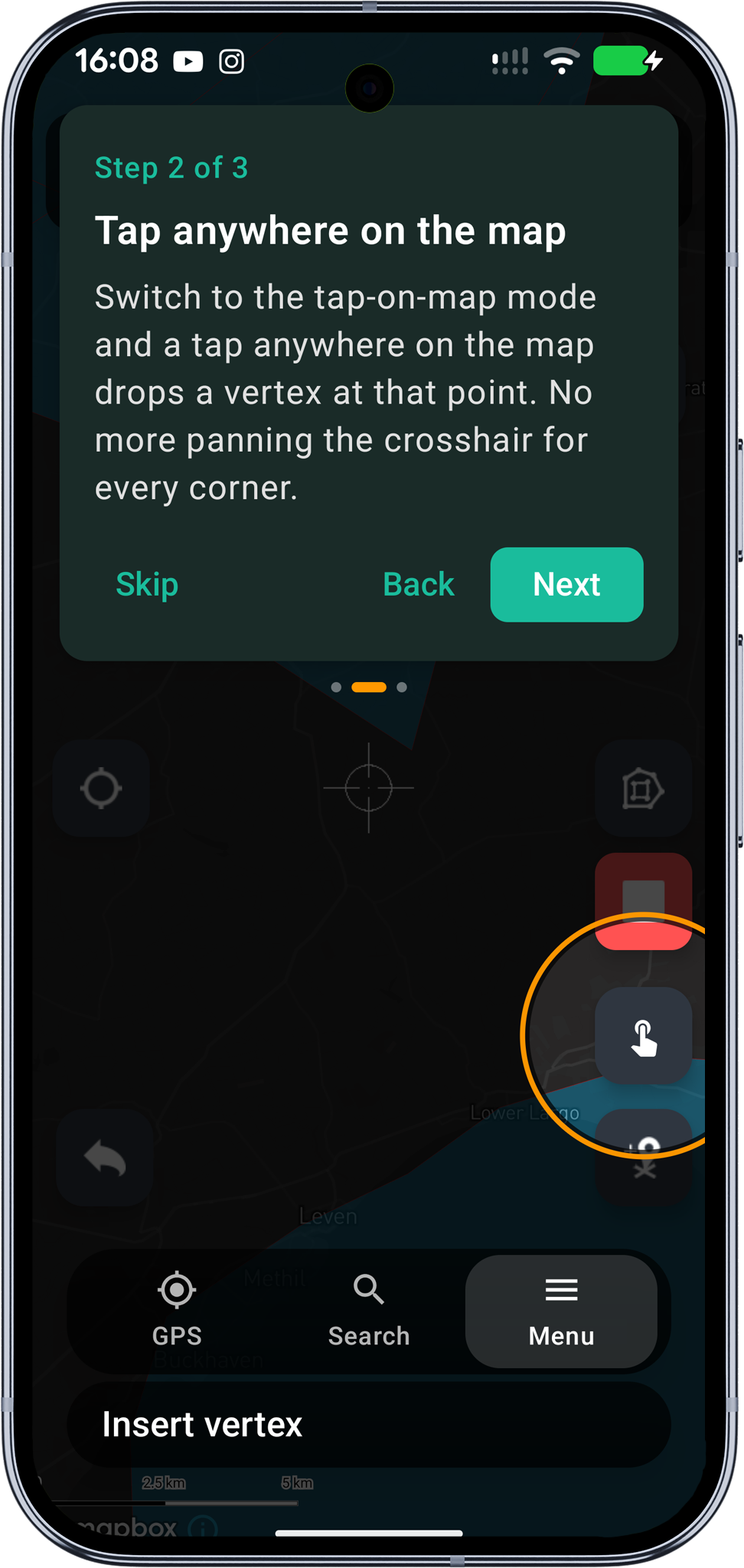
Switch to this mode and every tap on the map drops a new vertex at the tapped coordinate. It is the fastest way to build up a shape when you already know where the corners are from aerial imagery, a basemap, or another reference layer.
Tap on the map works for:
- New features - point, line, or polygon.
- Multi-part features - taps are appended to the currently selected part of a MultiLineString or MultiPolygon.
- Inner rings (holes) - while ring mode is active.
- Existing features - tapping appends a new vertex to the end of the geometry being edited, exactly as the crosshair mode would.
Because the coordinates come from the tap location and not from GNSS, accuracy filtering and position averaging do not apply here.
With a Pro+ subscription you can enable Vertex Snapping. Tapping within the snap radius of an existing vertex or edge then snaps the new vertex exactly onto it, producing shared vertices between adjacent features and watertight boundaries.
Distance and bearing mode
Use this mode when the target point is not directly accessible - for example the far side of a river, the top of a tree, or a traverse from a known base. You enter a horizontal distance and a true bearing from a source location, and Mapit projects the target on the map.
See Project Point Method for the full workflow, base-point management, and Bluetooth laser rangefinder support.
To make this mode part of the toolbar cycle you must first enable it under Settings > Survey Settings > Distance and Bearing Method. Without that setting, the cycle stays on two modes (Crosshair and Tap on the map) so you do not cycle through a mode you cannot use.
Enter coordinates by hand
Alongside the three input modes, you can place a point or vertex at an exact typed position instead of capturing it from GPS, the crosshair, or a tap. This is ideal for setting out a known survey mark, entering a coordinate from a report, or nudging a position to a precise value.
- New point feature - long-press the Add feature button while a point layer is active.
- Line or polygon vertex - long-press the Add vertex button during a capture or edit session.
A coordinate-entry dialog opens, prefilled with your current position so it is quick to adjust to a known value. Enter the coordinate in whichever format suits your data - decimal degrees, degrees and minutes, degrees/minutes/seconds, UTM, MGRS, or the projected easting and northing of your working coordinate system - then tap Add. Mapit validates the entry, places the point or vertex there, and for a new feature continues into the normal attribute form.
The first time you tap Add feature or Add vertex after this feature arrived, a one-off hint points out the long-press gesture.
Interaction with existing edit tools
All three modes coexist with the edit-session tools you already know:
- Tapping an existing session vertex still selects it so you can drag it or delete it.
- Tapping a midpoint indicator still promotes the midpoint to a real vertex.
- The Back button still removes the last added vertex regardless of which mode added it.
- Ring mode, multi-part editing, and the Z-value handling behave identically in all three modes.
Only when your tap misses every existing session vertex and midpoint does the active vertex-input mode take over and add a new vertex.
The two modes
iOS supports two vertex input modes, selectable from the Vertex Input Mode chip on the capture toolbar and the edit toolbar:
| Mode | How a vertex is placed | Typical use |
|---|---|---|
| Crosshair | At your current GPS position when the map is locked to GPS, or at the map crosshair when it is not | Walk-the-feature surveying, heads-up digitising with the crosshair |
| Tap on the map | At the exact point on the map where you tap | Fast on-screen digitising of corners from aerial imagery or a basemap |
- Android
- iOS
The distance and bearing mode exists in the iOS codebase but is not yet exposed in the toolbar cycle. It will be added in a future release.
Switching between modes
Start a capture or edit session on a line or polygon layer, then tap the Vertex Input Mode chip on the toolbar to toggle between Crosshair and Tap on the map. Your choice is remembered across sessions.
The chip is available on both:
- The capture toolbar — while you are drawing a new feature.
- The edit toolbar — while you have an existing feature open for editing.
Crosshair mode
The classic Mapit data-capture workflow. The point that ends up in your layer is:
- Your GPS position when the map is centred on GPS.
- The map crosshair (centre of the screen) when GPS lock is off.
Tap Add vertex on the toolbar to append the current position to the geometry. This mode is available on all subscription tiers and works with every geometry type.
Crosshair mode is the only mode that can use position averaging, minimum accuracy filtering, and antenna height correction, since those all consume the live GNSS stream.
Tap on the map mode
Switch to this mode and every tap on the map drops a new vertex at the tapped coordinate. It is the fastest way to build up a shape when you already know where the corners are from aerial imagery, a basemap, or another reference layer.
Tap on the map works for:
- New features — point, line, or polygon.
- Inner rings (holes) — while ring mode is active.
- Existing features — tapping appends a new vertex to the end of the geometry being edited (line tail or after the last outer-ring vertex).
Because the coordinates come from the tap location and not from GNSS, accuracy filtering and position averaging do not apply.
With a Pro+ subscription you can enable Vertex Snapping. Tapping within the snap radius of an existing vertex or edge then snaps the new vertex exactly onto it, producing shared vertices between adjacent features and watertight boundaries.
Drag-to-reposition
In both capture and edit sessions you can drag any existing session vertex to reposition it without switching modes:
- Tap a vertex handle (yellow dot) to select it.
- Drag it to its new position.
- Release to commit, or tap elsewhere to cancel.
With Vertex Snapping (Pro+) enabled, a magnifying loupe floats above your finger during the drag and the vertex springs onto the nearest snap target on release.
The Add vertex / crosshair-confirm flow remains available as an alternative for GPS-anchored placement.
Interaction with existing edit tools
Both modes coexist with the standard edit-session tools:
- Tapping an existing session vertex still selects it so you can drag or delete it.
- The Undo button removes the last added vertex regardless of which mode added it.
- Ring mode and multi-part editing behave identically in both modes.
Only when your tap misses every existing session vertex does the active input mode take over and add a new vertex.
First-time tutorial
On your first capture or edit session a paginated six-step tutorial sheet walks you through the modes and the drag-to-reposition gesture. You can replay it at any time from Settings → About → Replay tutorials.
Related Topics
- Vertex Snapping - Pro+ snap to existing vertices and edges
- Snapping Settings - Configure snap radius, scope, and edge snap
- Project Point Method - Distance and bearing workflow in depth
- Survey Settings - Position averaging, accuracy, and antenna height
- Map Screen - Overview of the main map controls