Online Maps
Online mapping in Mapit Professional allows users to add a variety of background and data layers to their map projects, enhancing visualization and analysis capabilities. The application supports multiple online map service formats-including WMTS (Web Map Tile Service), WMS (Web Map Service), WFS (Web Feature Service), and XYZ tile sources-enabling integration of rich geospatial data from numerous providers. You can also add any type of URL returning a GeoJSON response as an online layer.
To access and manage these online map services, use the "Online Maps" section within the main menu. This feature presents a service management interface organized into tabs. Each tab may contain sample services by default, which users are free to retain, remove, or customize according to their specific geographic and project requirements.
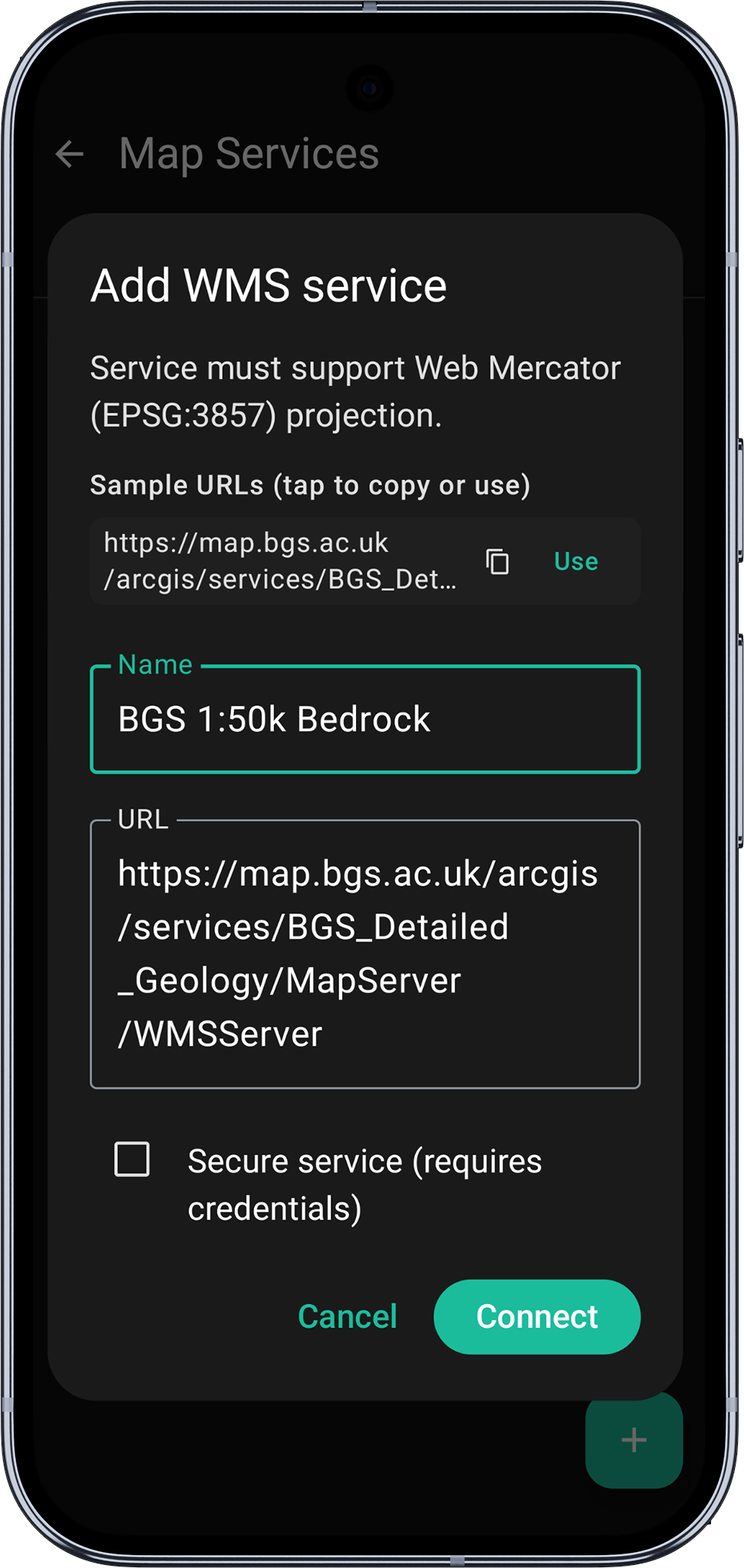
Adding a custom online map service is straightforward: tap the "+" icon in the "Online Maps" menu. Depending on the service type, you may be prompted to provide additional information, such as the service name and endpoint URL. For example, when configuring a WMS layer, simply specify a descriptive name and the WMS service URL before proceeding by tapping "Connect."
This flexible system empowers users to leverage both default and custom map layers, ensuring their workspace is optimized for diverse mapping and data collection tasks.
Add WMS process
- Android
- iOS
- Open
Online Mapsactivity -> Navigate toWMS Taband Press the+button.
- Open
Online Servicesfrom the main menu, navigate to theWMStab and tap the+button.
- Android
- iOS
- Populate required
Nameand theService URLfields and pressConnect.
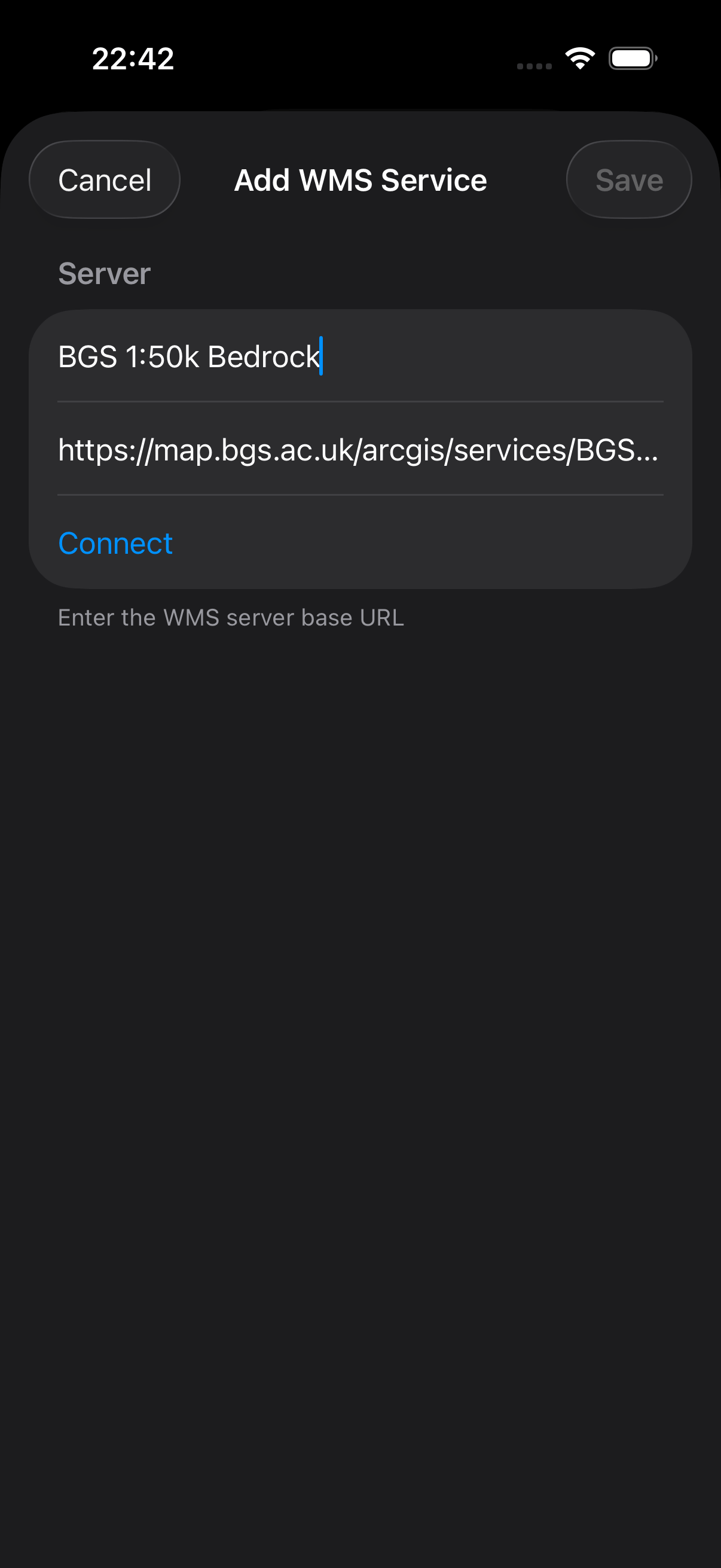
- Populate the required
NameandService URLfields and tapConnect.
- Android
- iOS
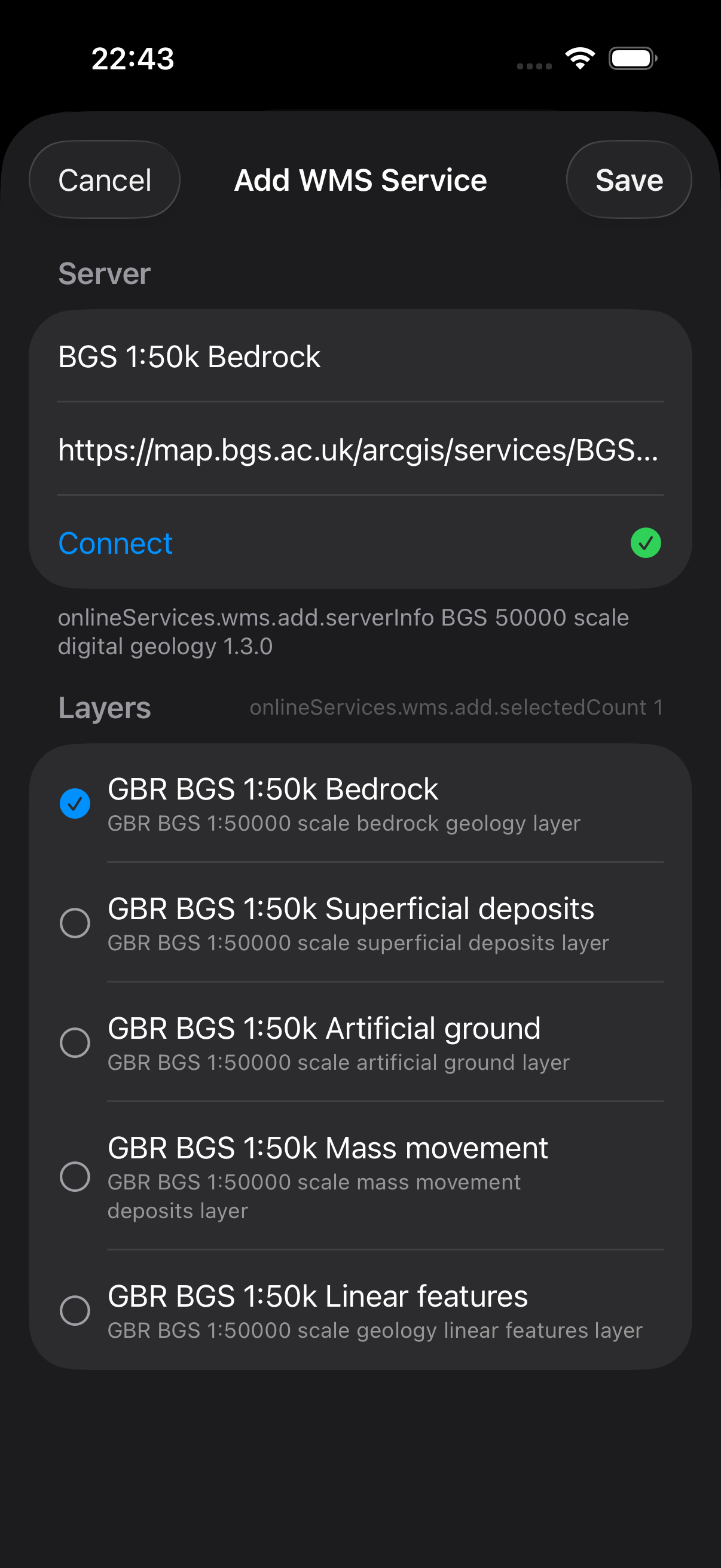
- When the connection is successful user will be presented with the available layers. Please check the checkbox to get the layer selected. By pressing the
ibutton some general service metadata is being displayed if available. To save the configuration please pressSave Service Configurationbutton.
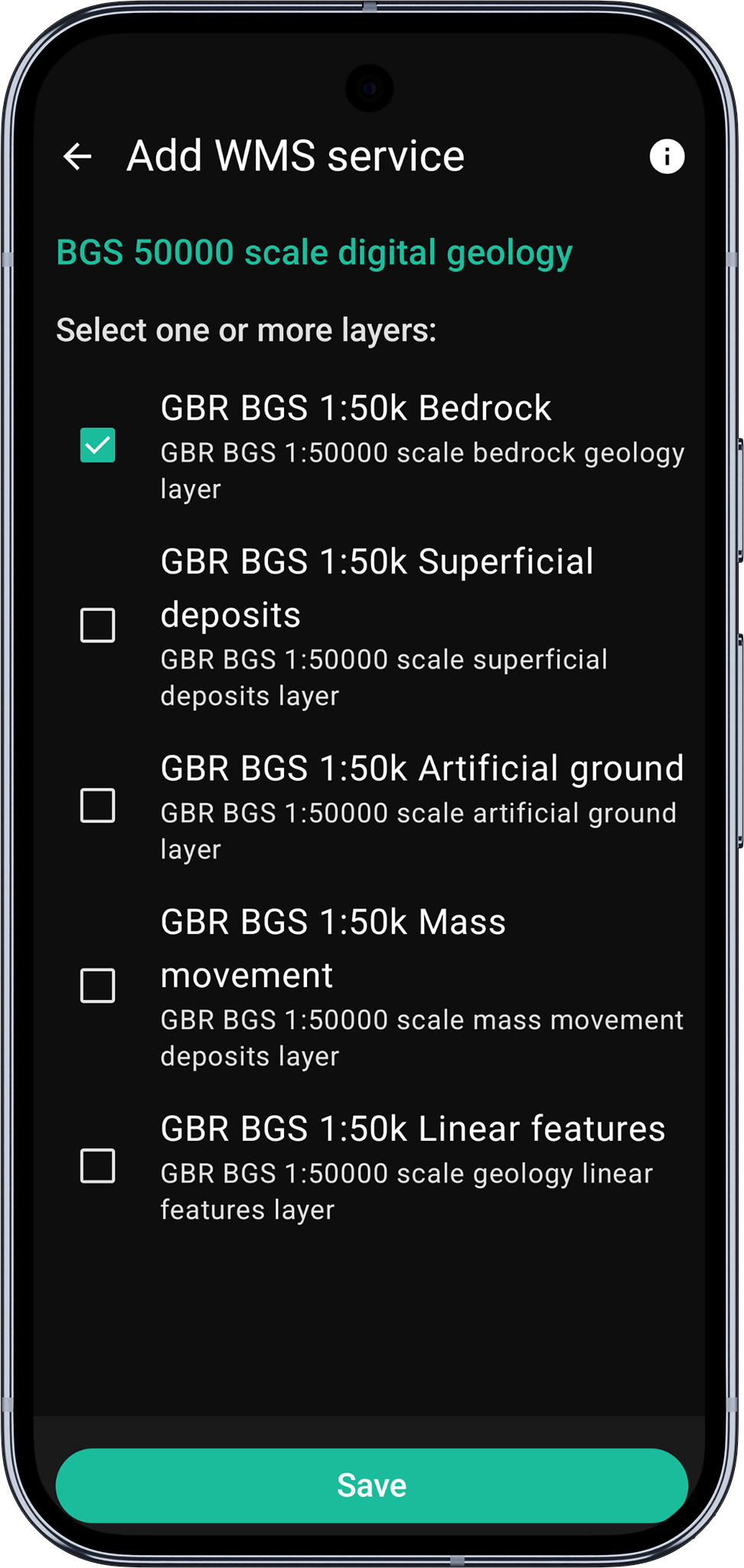
- When the connection is successful you will be presented with the available layers. Check the layer you want to select and tap
Saveto save the configuration.
- Android
- iOS
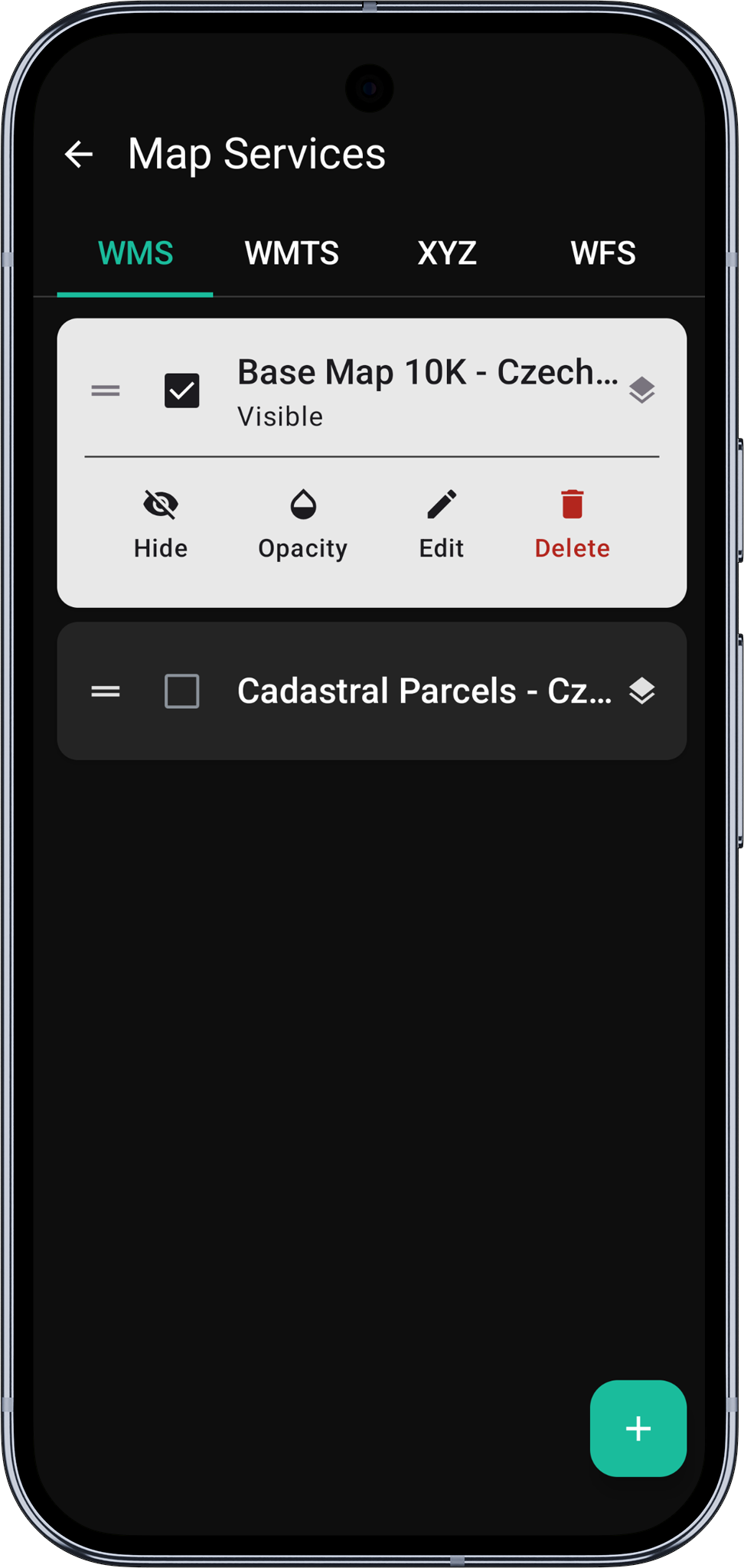
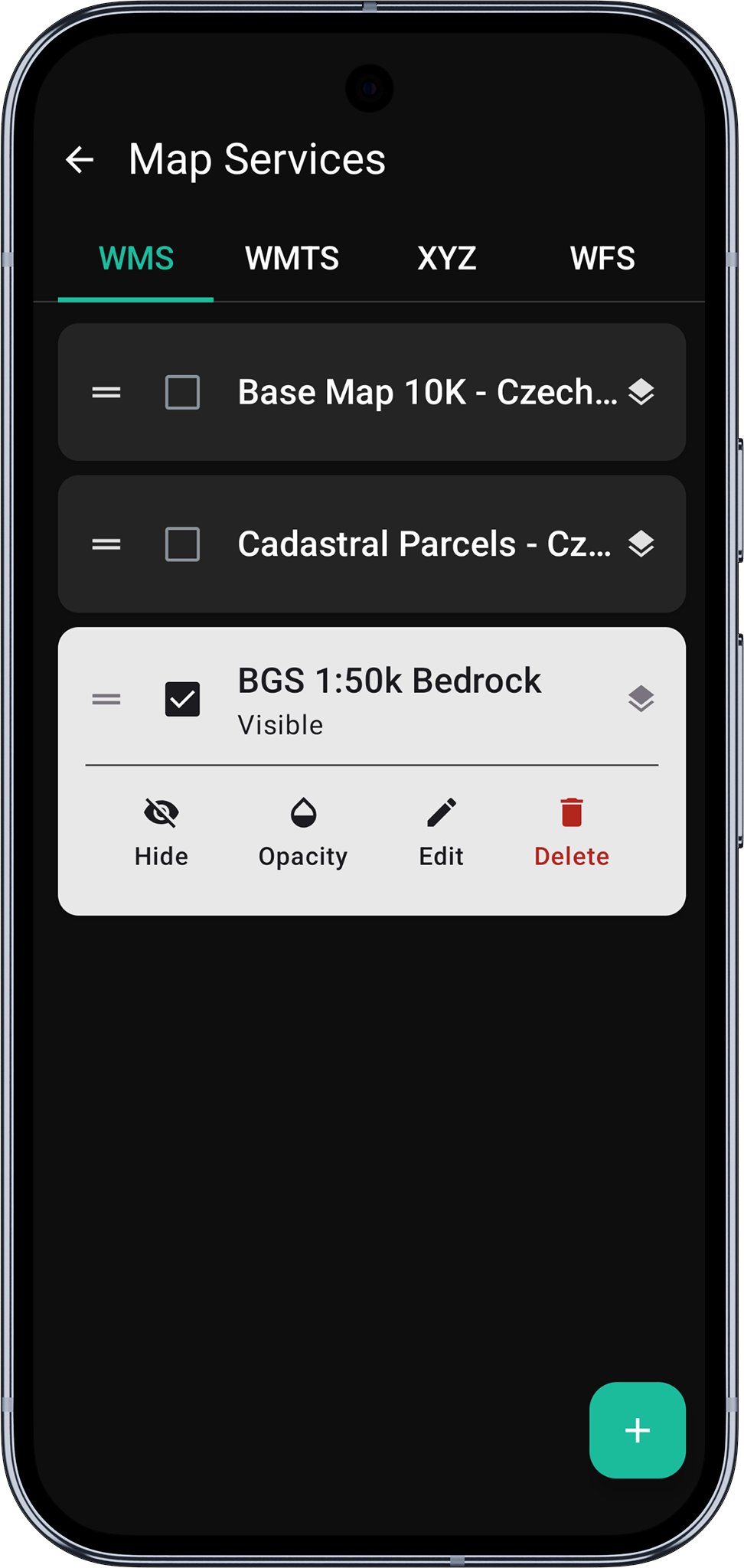
- Ensure the service is checked to enable its visibility on the map. If required, you can tap the service name to access and modify its configuration settings like transparency, drawing order, etc.
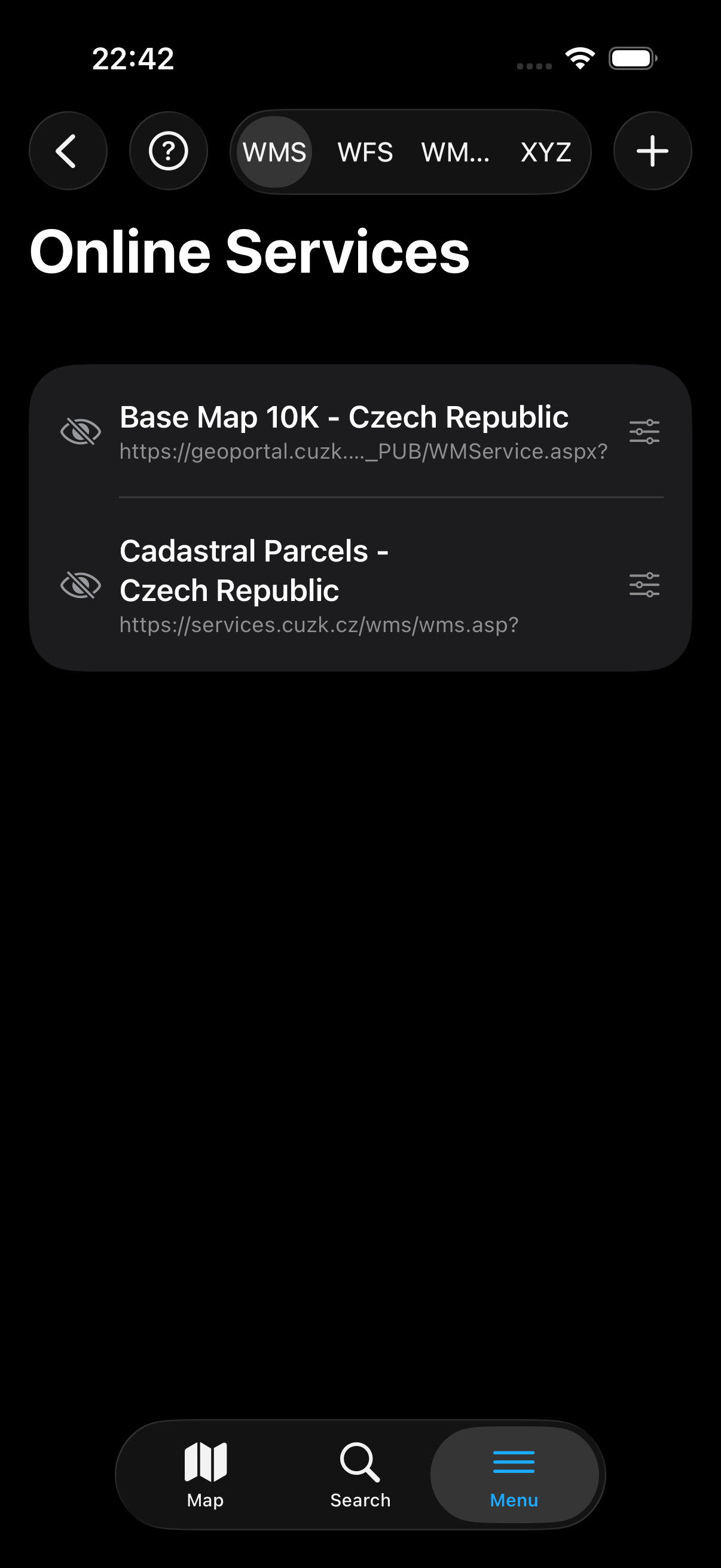
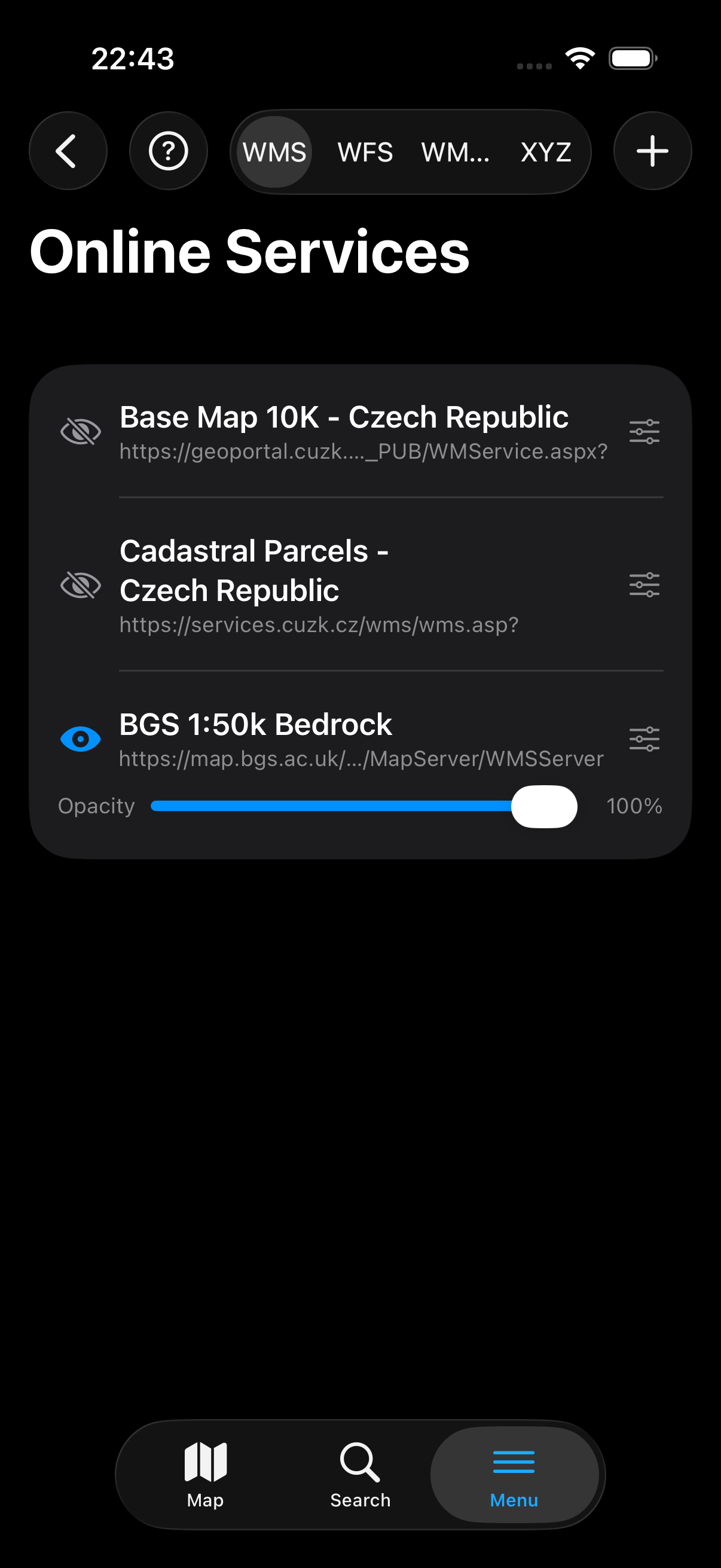
- The new service appears in the Online Services list. Tap the eye icon to toggle its visibility on the map. Tap the settings icon to adjust configuration such as opacity.
- Android
- iOS
-
Layers drawing order: If you are displaying more than one service of certain type on the map you can drag the selected service down or up using the
dragelement on the left-hand side of the list. This will force to display the services in the order specified by the position on the list. -
Navigate back to the map.
Some services might be restricted to be visible only at a certain scale, you may need to zoom-in or zoom-out to be able to see the content.
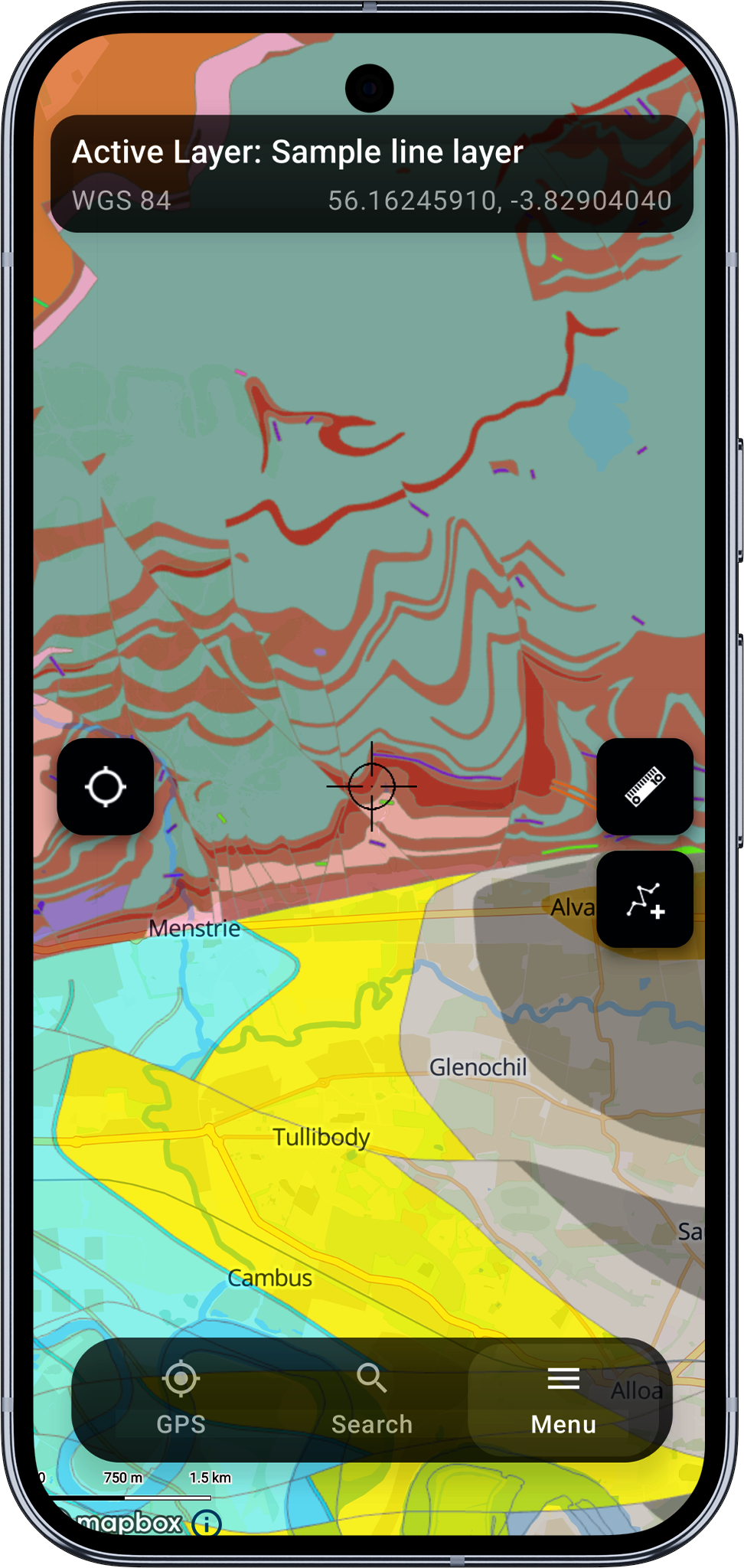
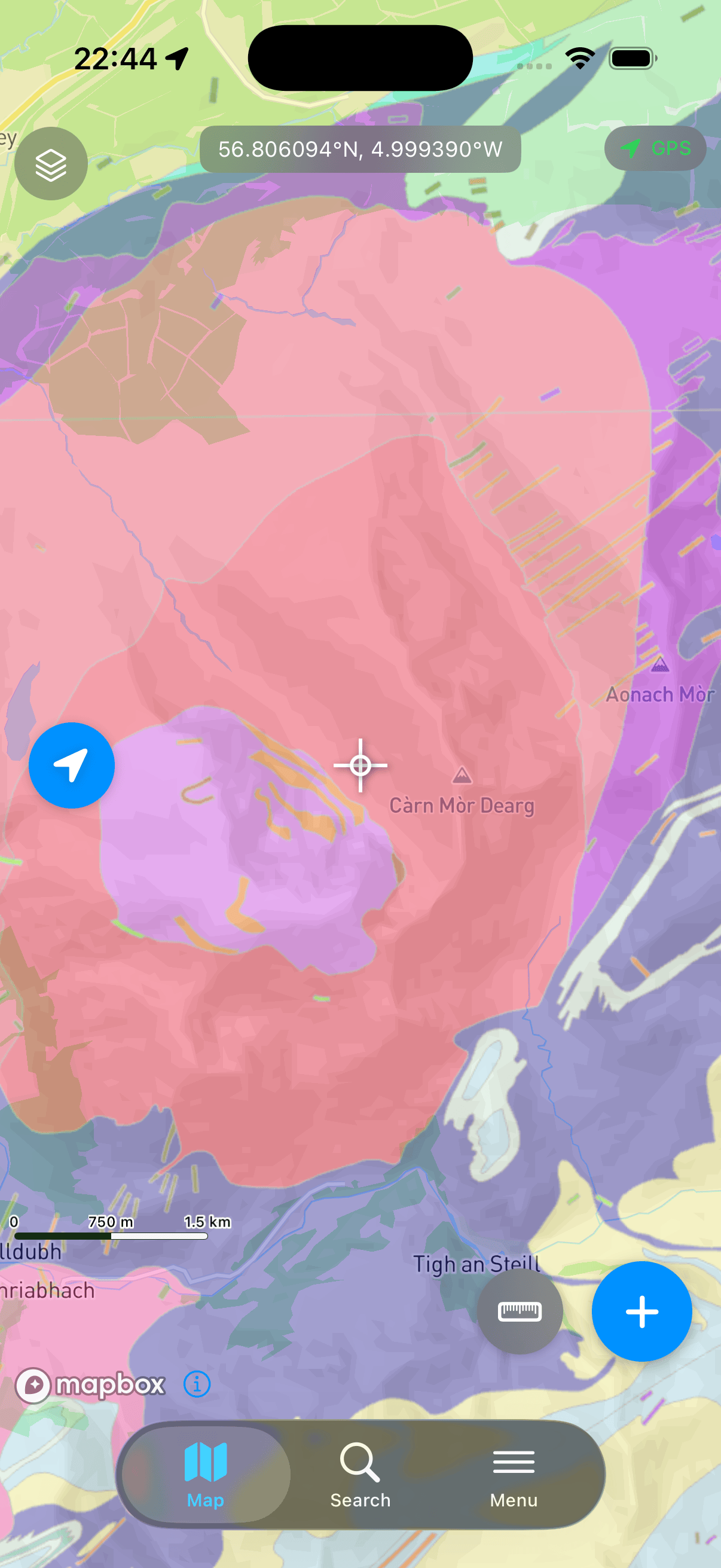
- Navigate back to the map to see the WMS layer rendered.
Some services might be restricted to be visible only at a certain scale. You may need to zoom in or out to see the content.
Related Topics
- Main Menu - Overview of all menu options
- Manage Projects - Create and manage your GIS projects
- Manage Layers - Create and configure feature layers
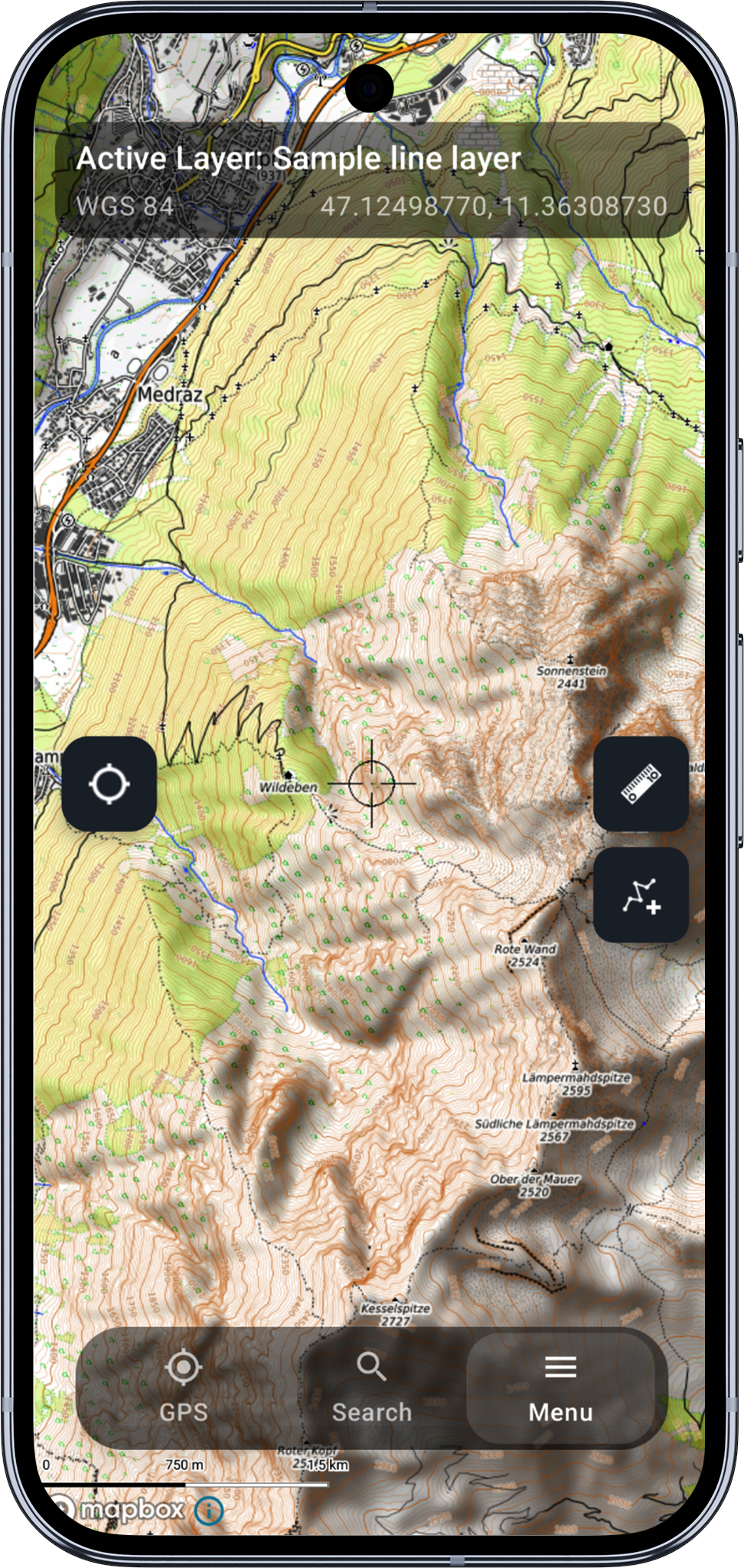
Other examples of online maps
- Android
- iOS
iOS documentation is on its way. The core functionality is shared across platforms, so the Android instructions will get you started.